Built with DocStar
In this guide, users can set up and authenticate the WhatsApp Business Cloud API.
Prerequisite for the connection
Developer Meta Application
Meta Business Manager with the WhatsApp manager access.
If you already have the app created and the webhook subscription for the WhatsApp product is empty, you can skip step 01 below.
STEP-01: Creation of the Meta Application
Create an app in https://developers.facebook.com/apps/
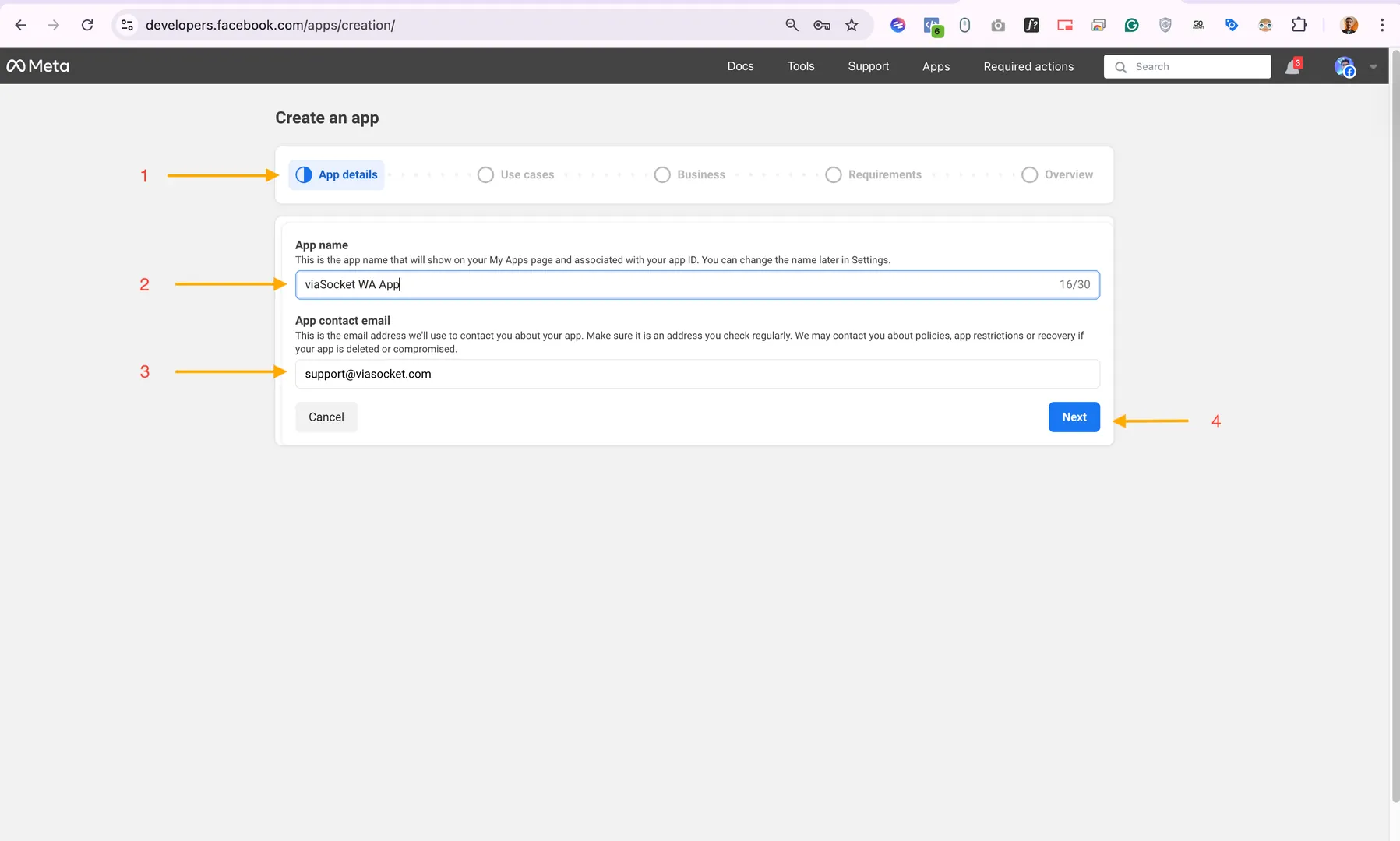
Fill in the details on the App Details
App name
App contact email
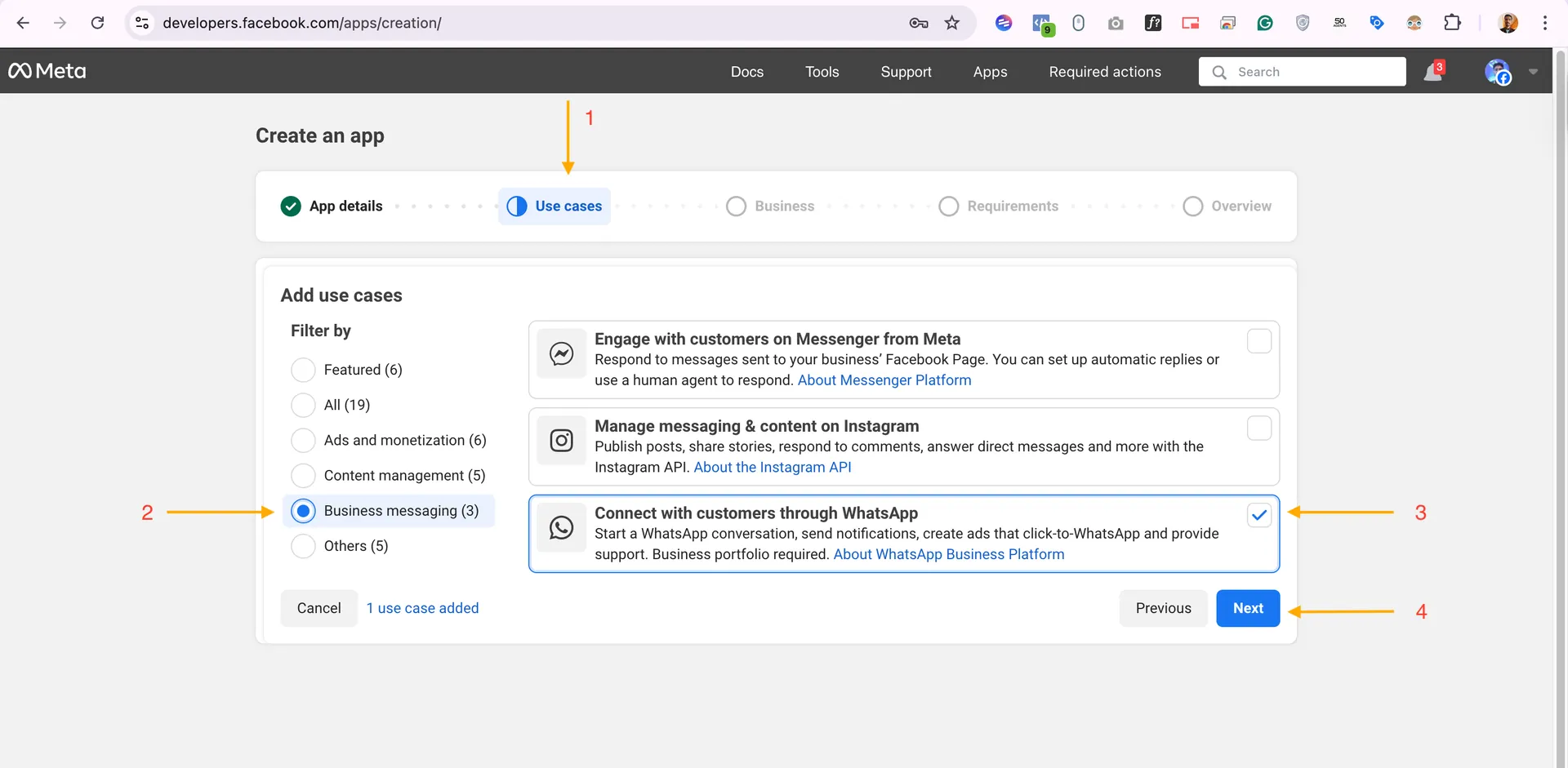
Under Use cases, Filter by Business messaging, select Connect with customers with WhatsApp
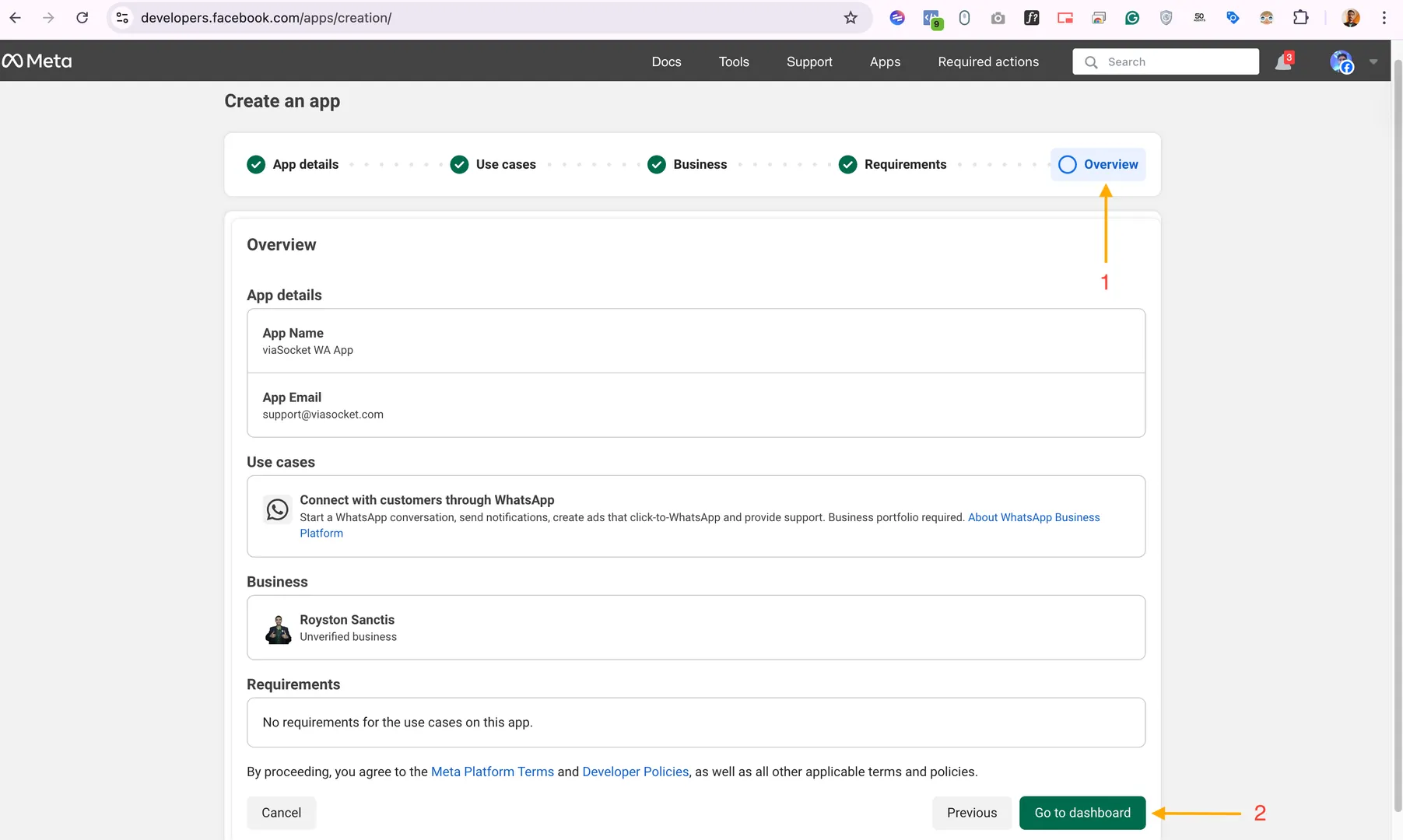
Choose a business and in the overview, click on Go to dashboard
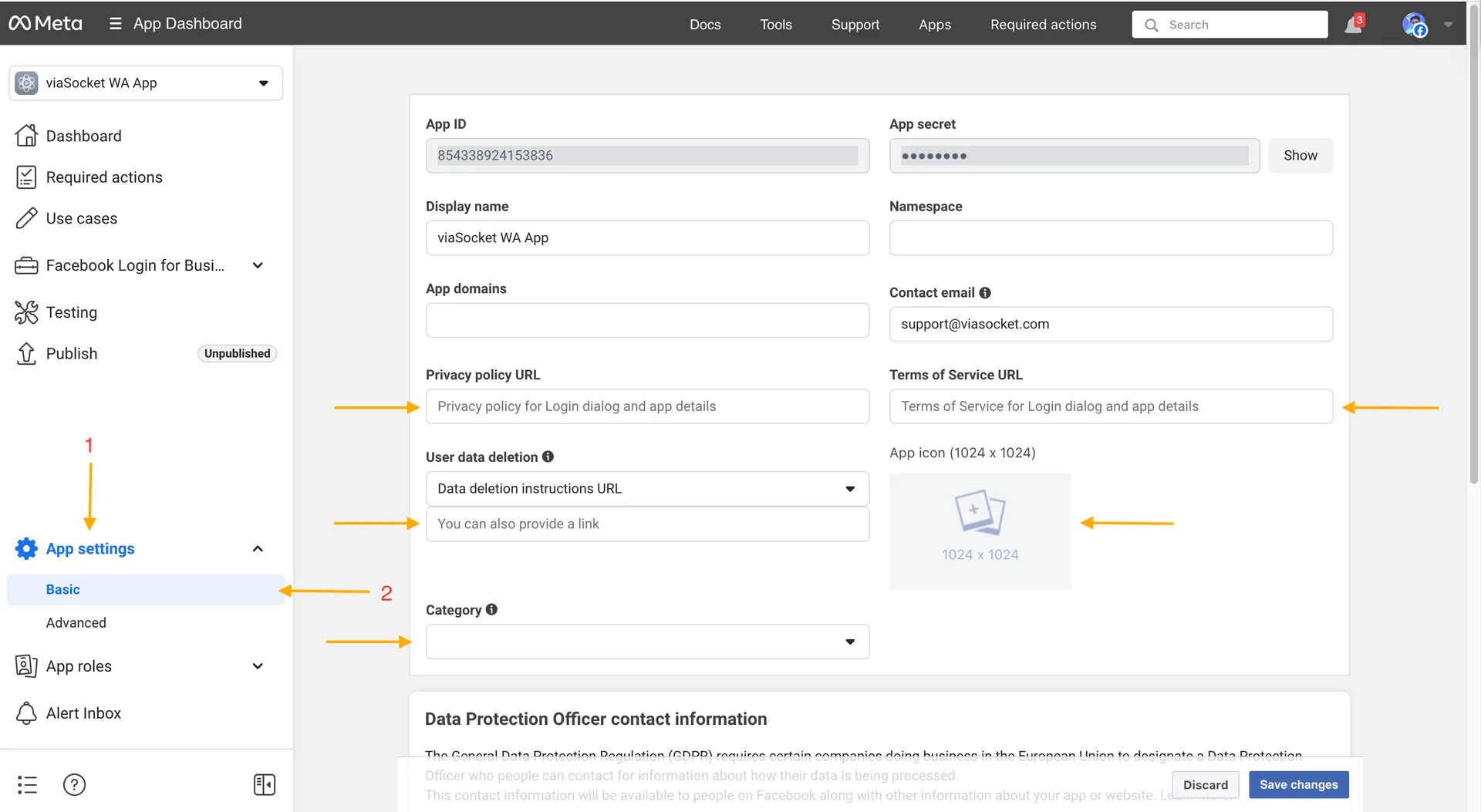
Complete the app settings, including the Privacy policy URL, Terms of Service URL, App icon, etc.
If you already have the WhatsApp Manager in the business manager, you can skip step 02 below.
STEP-02: API Setup-Adding Phone Number and Payment Setup
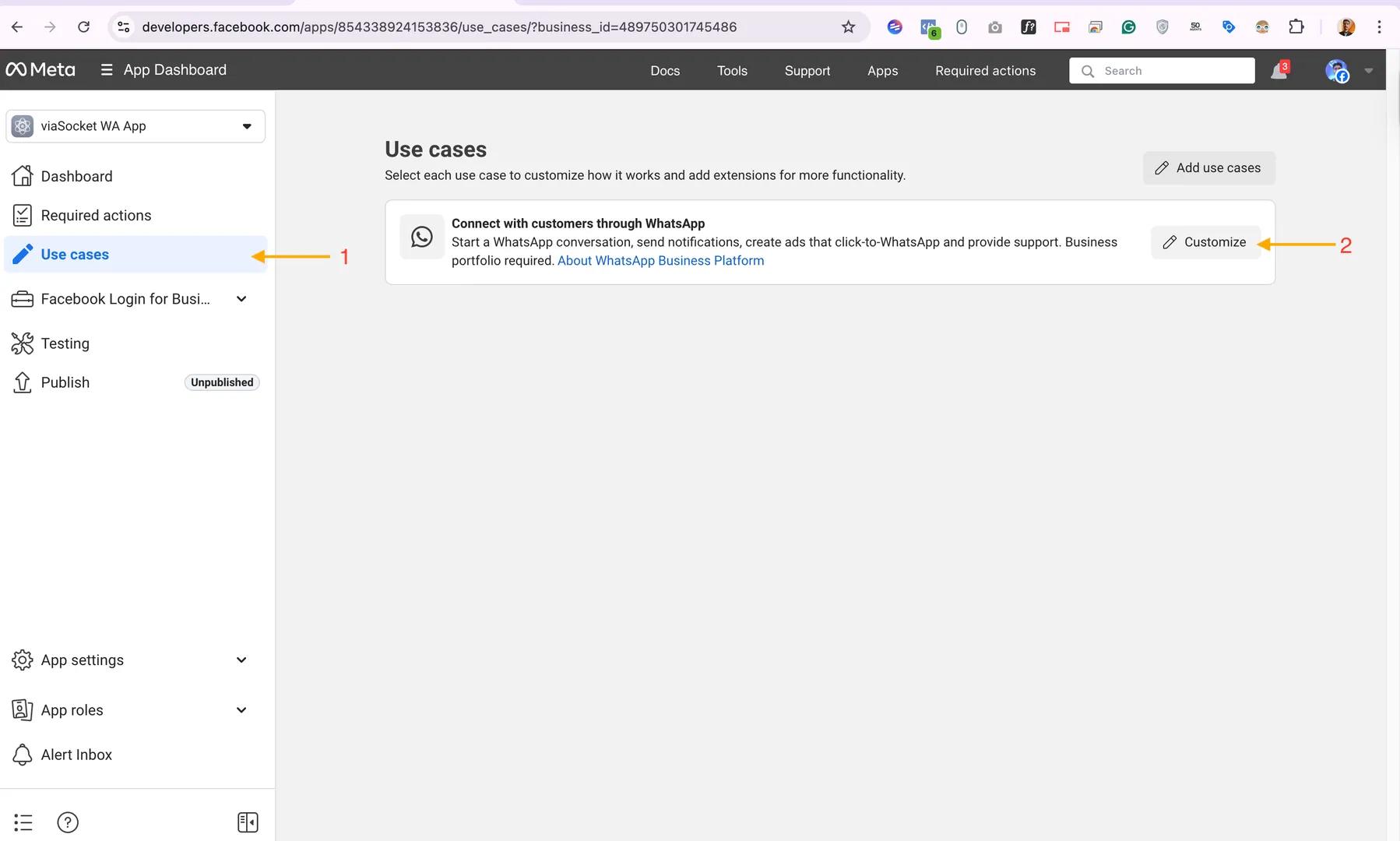
Go to the app https://developers.facebook.com/apps/ and click on Use cases, and click on Customize.
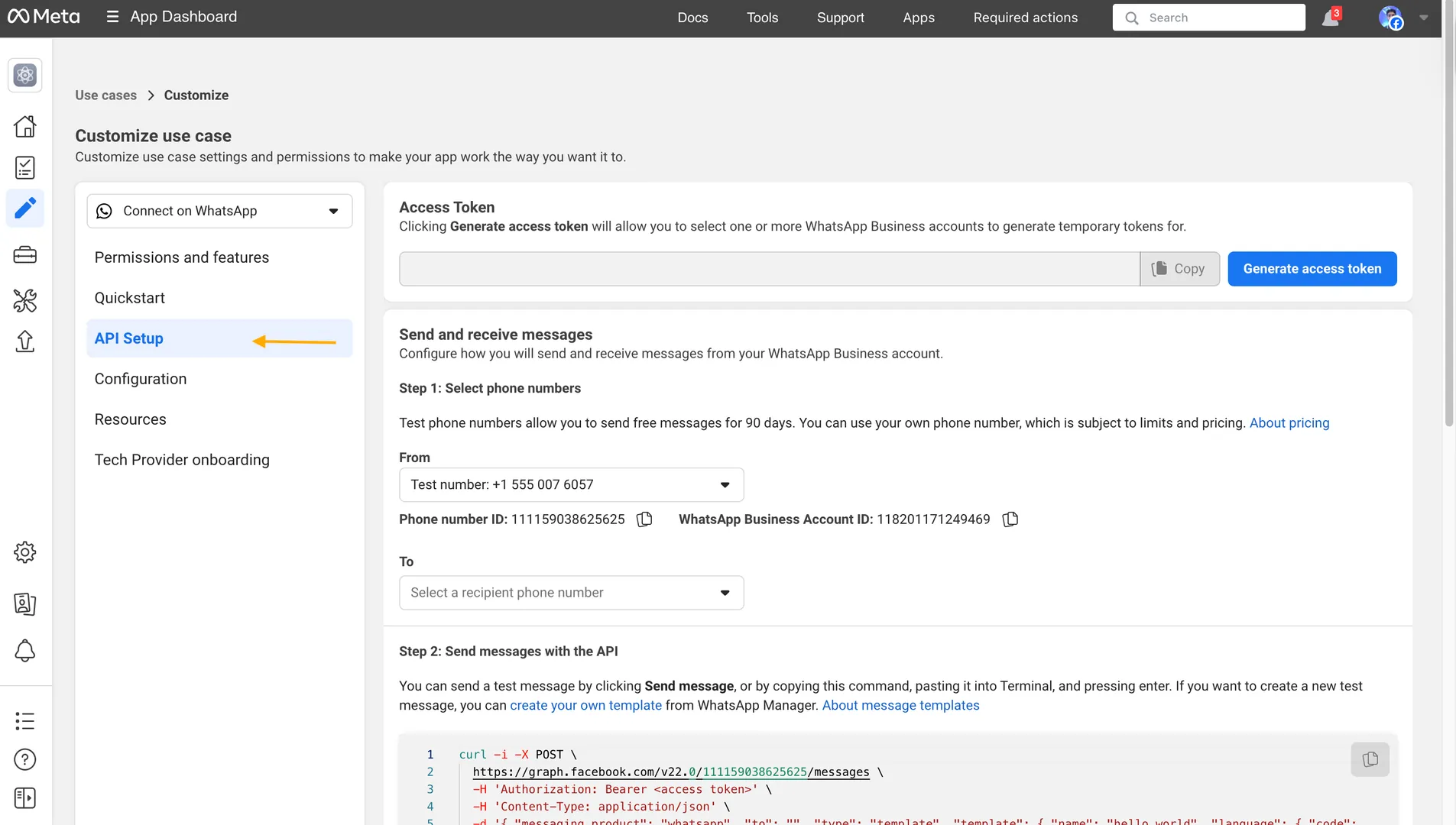
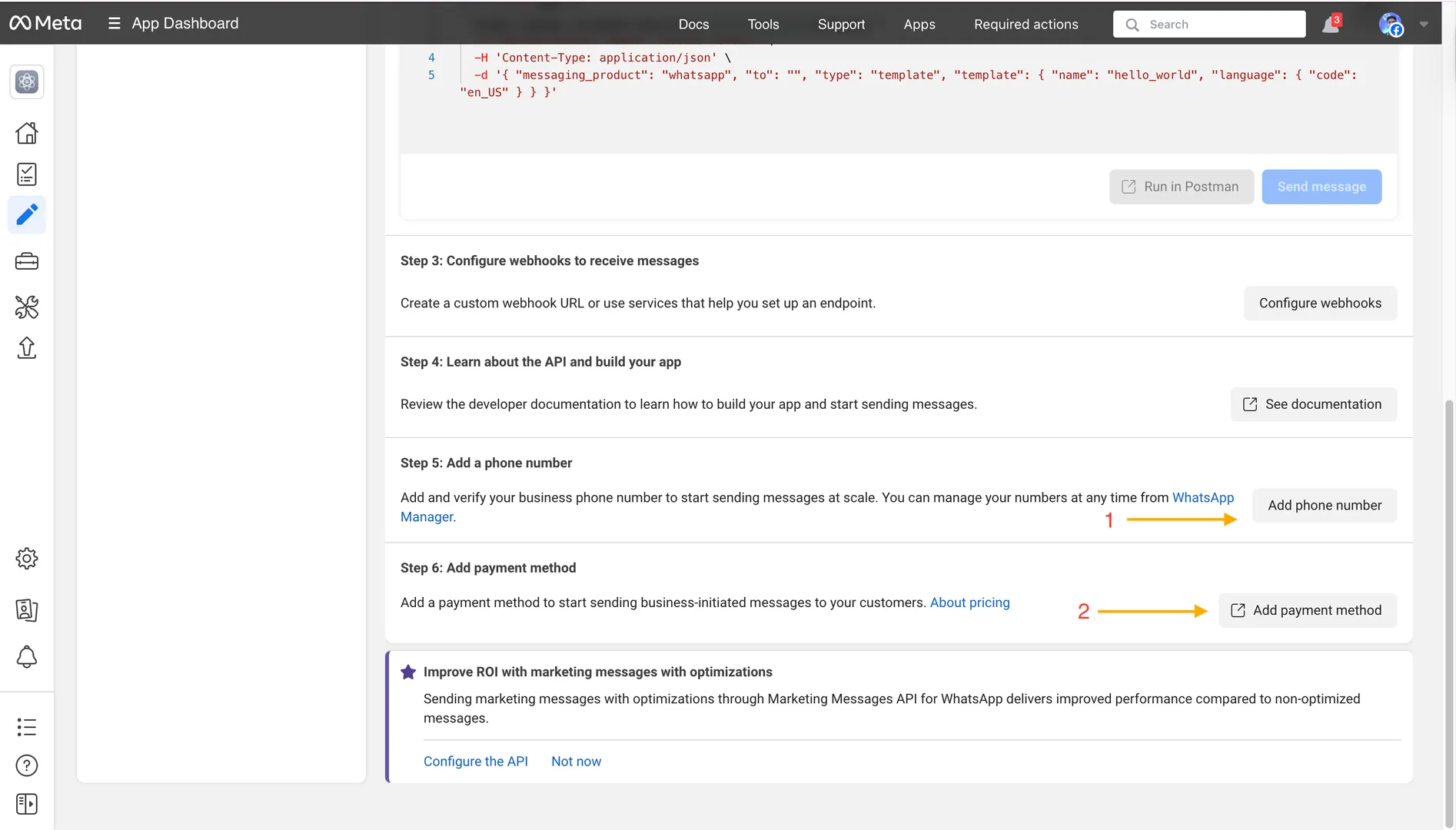
Under API Setup, the user can add a phone number and a payment method
You can use the default number provided by WhatsApp. Adding a payment method is mandatory.
STEP-03: Create a System User and Generate a Permanent Access Token
Below steps to create a permanent token for use across the WhatsApp Business Platform.
Navigate to Business Settings and click System users in the sidebar.
Click the Add+ button in the upper-right corner and follow the prompts to create a new system user.
Select the new system user you created, and click Assign Assets.
Select your app and toggle Manage app under Full control.
Select your WhatsApp account and toggle Manage WhatsApp Business Accounts under Full control.
Click the Assign assets button.
Click Generate token.
Follow the prompts to generate your token.
Add the following permissions to the token:
business_management
whatsapp_business_messaging
whatsapp_business_management
Copy the token and store it in a secure place to be used in the later steps.
STEP-04: App ID, App secret, and Business portfolio ID retrieval for connection
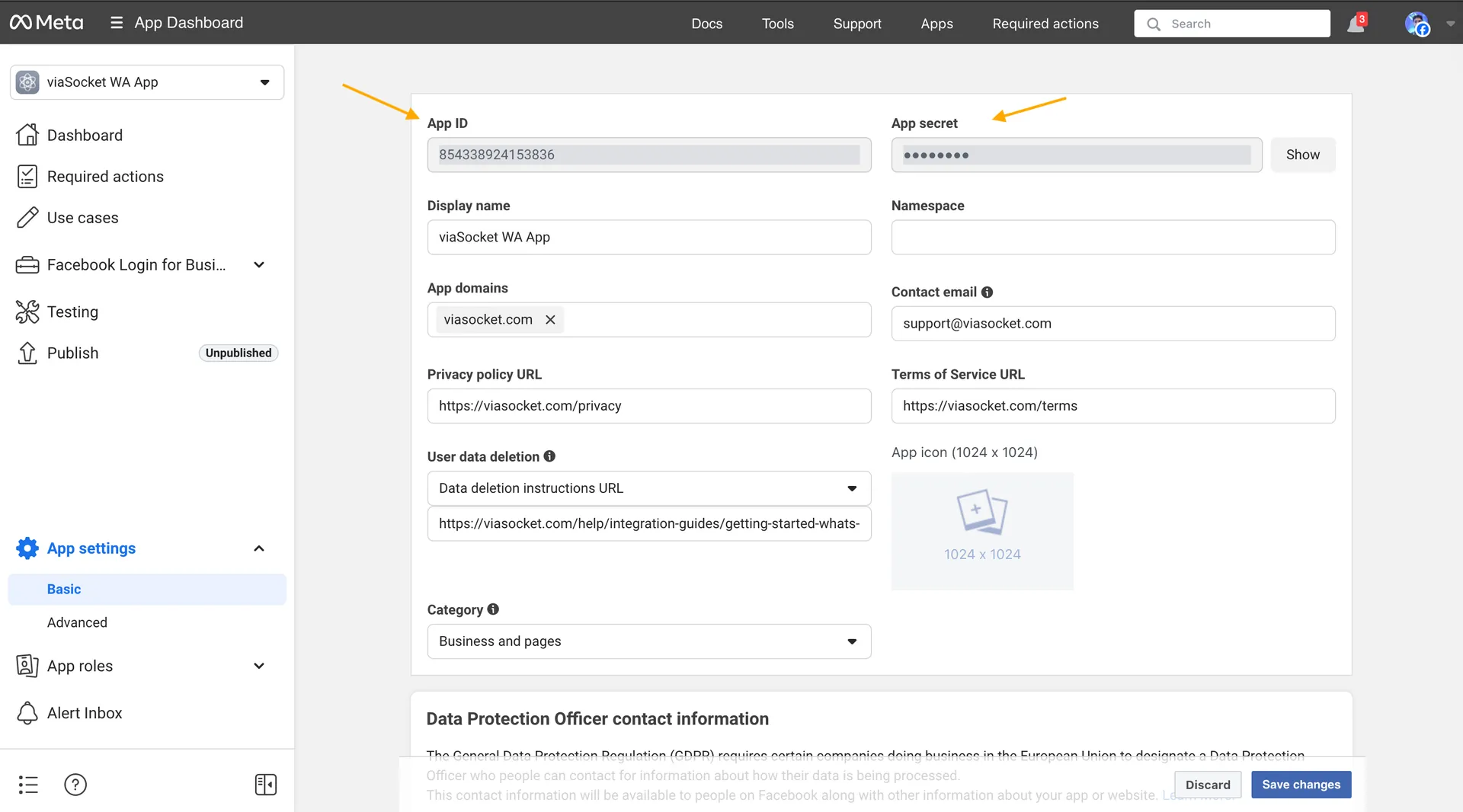
You can find the app's App ID on the Meta Developers Platform. App Settings>Basic> App ID
You can find the app's App secret on the Meta Developers Platform. App Settings>Basic> App secret
3. You will find the Business portfolio ID in Meta Business Manager under business info from here.

STEP-05: Adding a connection in the viaSocket
Go to connection (on the left menu) → Connect new App button (top right) → Search WhatsApp Business Cloud → Select Trigger/Action and proceed Next → Add the App ID, App Secret, System Access Token, and Business portfolio ID.
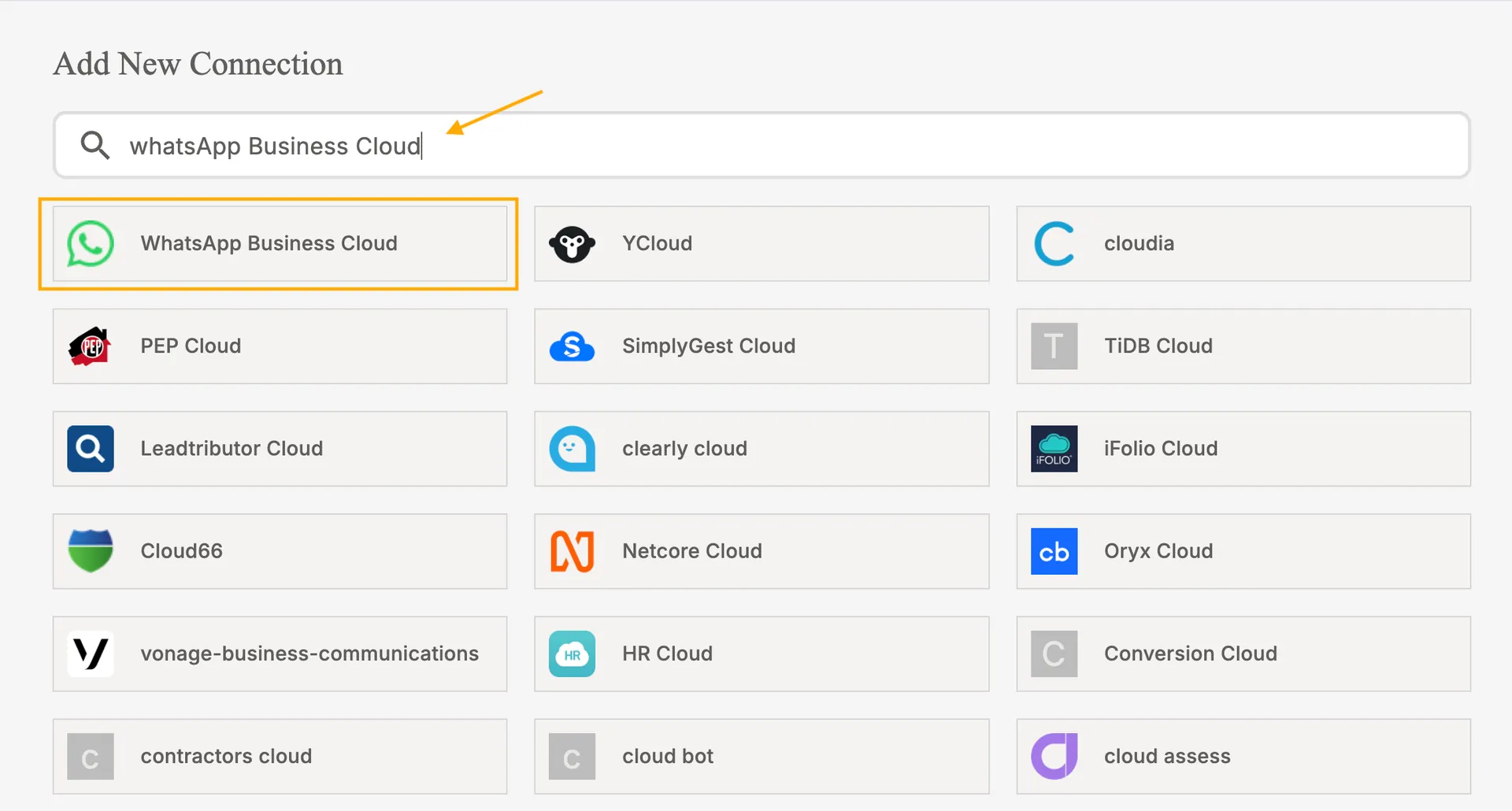
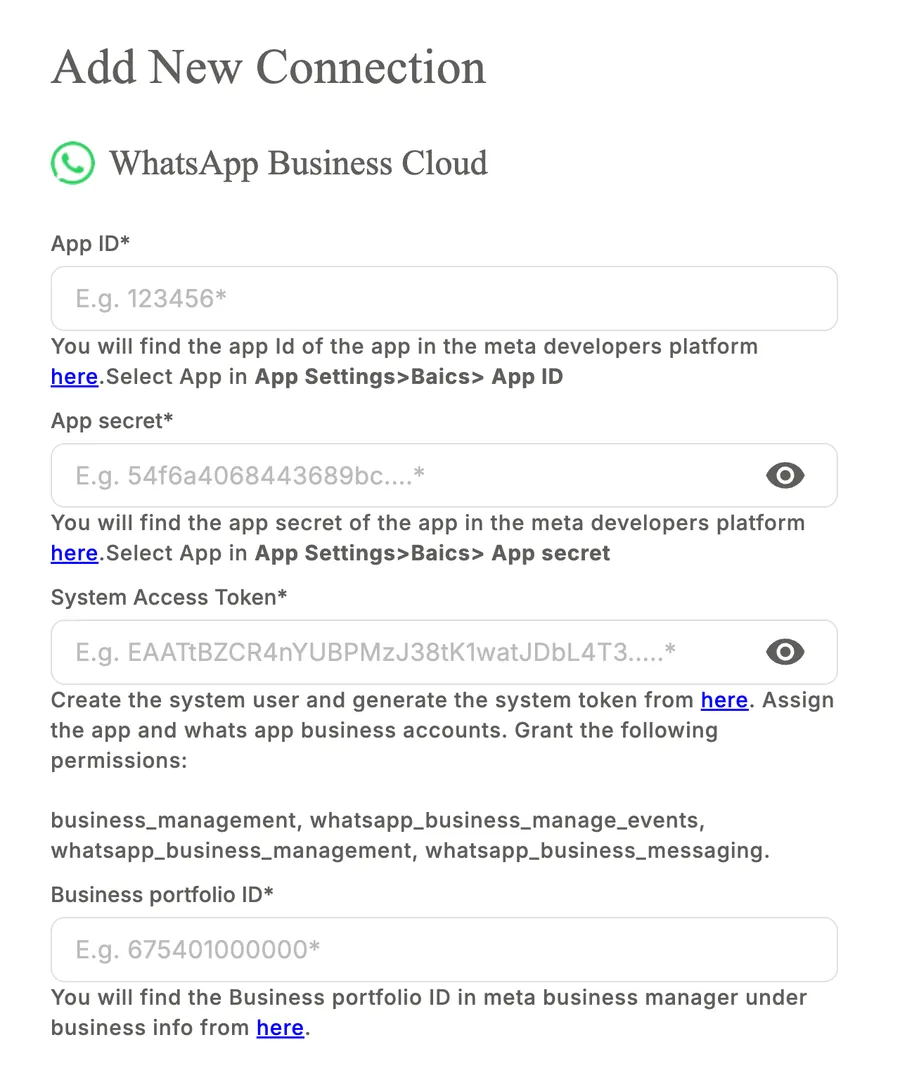
After the connection configurations are added, the success pop-up will be visible, where you can add the description of the connection and the connection access level.