Built with DocStar
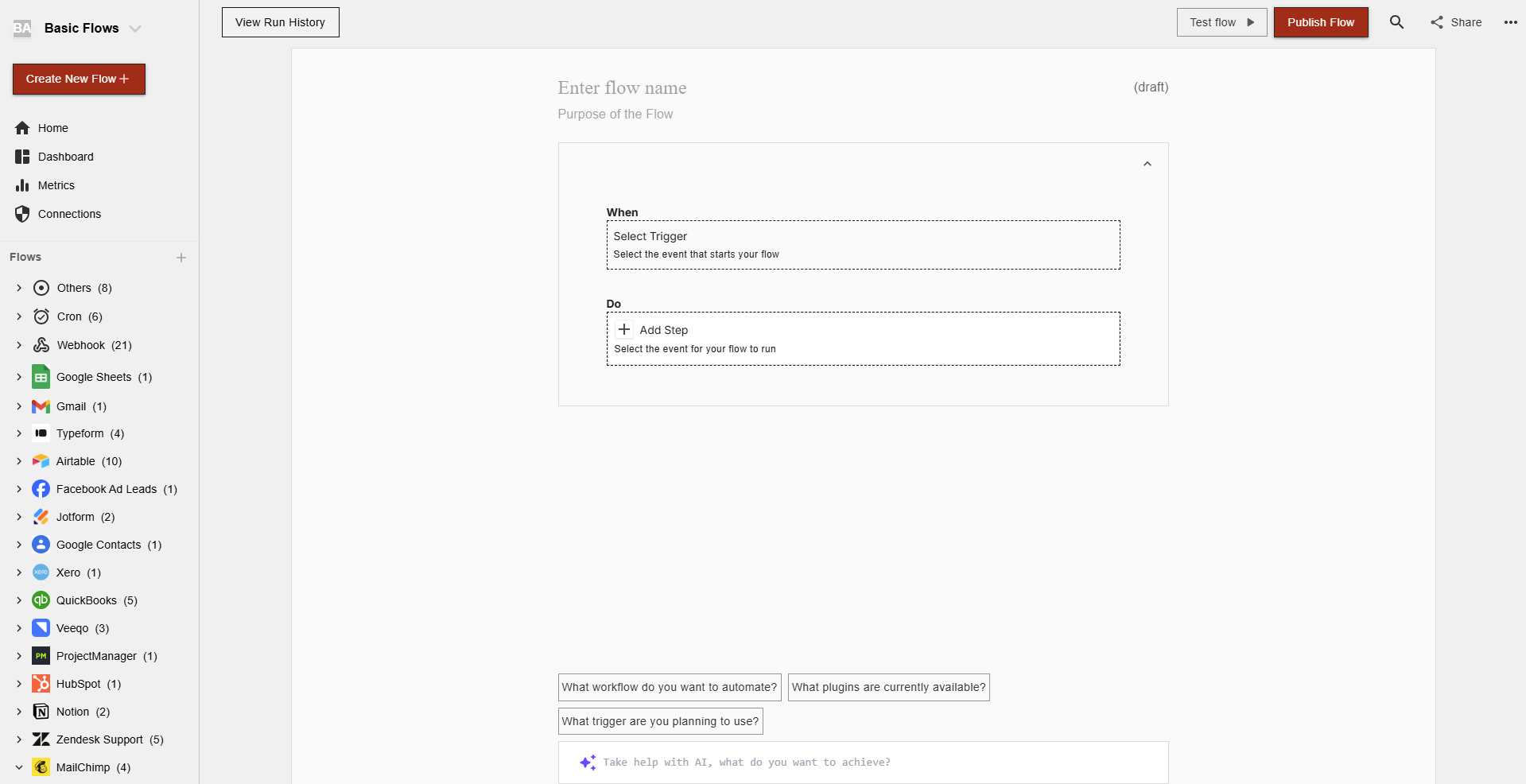
Follow these steps to connect your Dialpad and automate your tasks effortlessly.
#
Step 1: Select Dialpad from viaSocket’s Library of Apps
Find Dialpad: Use the search bar to locate Dialpad from the list of available apps.
Select Dialpad: Click on Dialpad to begin the integration process.
#
Step 2: Authenticate
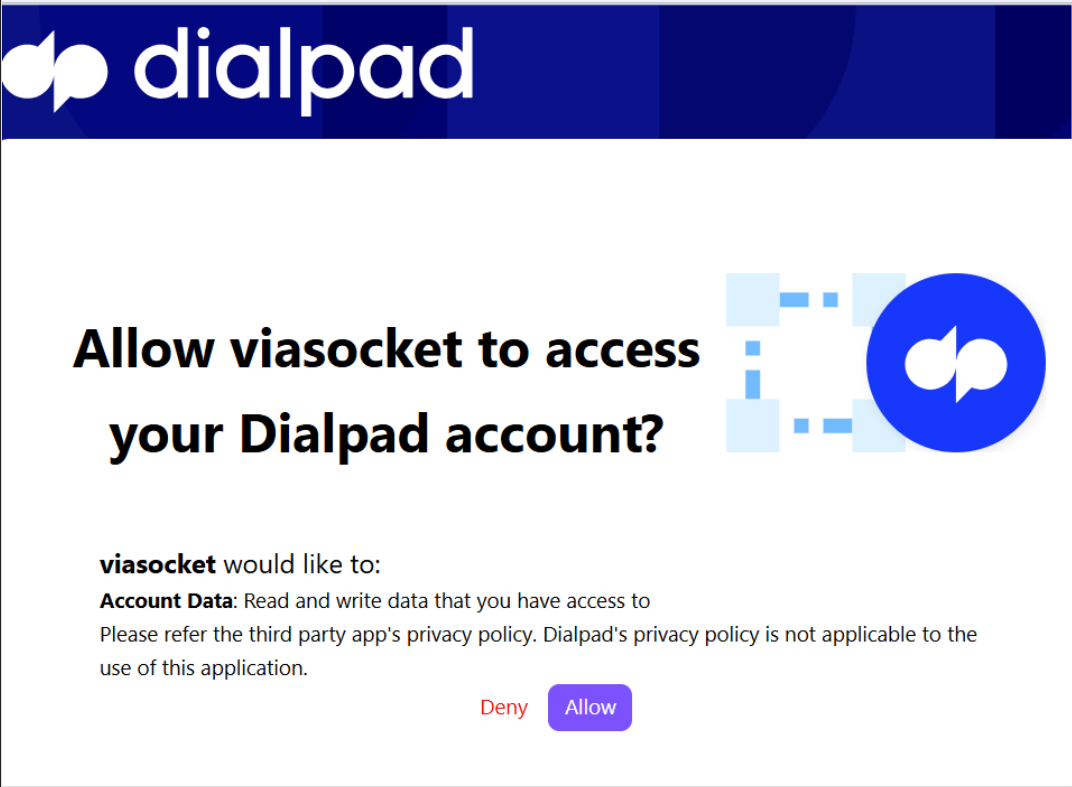
Authentication Prompt: After selecting Dialpad, viaSocket will prompt you to authenticate your Dialpad account.
Log In to Dialpad: If you are not already logged in, you will be asked to log into your Dialpad account.
#
Map Data Fields, Test and Save
Ensure that data from the triggering app is correctly mapped to the fields in Dialpad.
Before finalizing, run a test to ensure everything is set up correctly.
Once you are satisfied with the test results, save your step.
Was this helpful?