


Connect Zoho Connect and Microsoft Teams
Integrate Zoho Connect with Microsoft Teams to automate workflows, sync data between apps, and eliminate repetitive tasks with AI-powered automation.
Add Member to Group in Zoho Connect when New Channel Message in Microsftteams
Create Private Task in Zoho Connect when New Channel Message in Microsftteams
Create Task in Board on Zoho Connect when New Channel Message in Microsftteams
Create Status in Zoho Connect when New Channel Message in Microsftteams
Invite User to Network on Zoho Connect when New Channel Message in Microsftteams
Popular Zoho Connect + Microsoft Teams flows
Start from a real workflow other teams are already running.
Choose a trigger
Zoho Connect
When this happens...
New Announcement
New Status
Choose an action
Microsoft Teams
Automatically do this!
Send Channel Message
Create Channel
Create Private Channel
Reply to Channel Message
Send Chat Message
Get all Chats
Get all Teams
Get all Catalog
Get all Deleted Teams
Add Member to Group in Zoho Connect when New Channel Message in Microsftteams
Use this flowCreate Private Task in Zoho Connect when New Channel Message in Microsftteams
Use this flowCreate Task in Board on Zoho Connect when New Channel Message in Microsftteams
Use this flowCreate Status in Zoho Connect when New Channel Message in Microsftteams
Use this flowInvite User to Network on Zoho Connect when New Channel Message in Microsftteams
Use this flowCreate Event in Zoho Connect when New Channel Message in Microsftteams
Use this flowAdd Member to Group in Zoho Connect when New Channel in Microsftteams
Use this flowCreate Private Task in Zoho Connect when New Channel in Microsftteams
Use this flowCreate Task in Board on Zoho Connect when New Channel in Microsftteams
Use this flowCreate Status in Zoho Connect when New Channel in Microsftteams
Use this flowSupported Triggers & Actions
Everything you can automate between Zoho Connect and Microsoft Teams.
When this happensTriggers
A trigger is an event that starts a workflow.
New Announcement
Triggers when a new Announcement is added.
New Status
Triggers when a new status is added.
New Channel Message
Triggers when a new message is posted in a channel.
New Channel
Trigger when new cchannel is created
New Chat Message
Triggers when new message is received in a chat
New Reply to Message
Triggers when a new reply is added to a message in a channel.
Do thisActions
Action is the task that follows automatically within your Zoho Connect integrations.
Add Member to Group
Adds user to a group (invite and add, if the user is not a member of the network).
Create Private Task
Adds a private task.
Create Task in Board
Adds a new task in a specific board.
Create Status
Adds a new status in a specific group.
Invite User to Network
Sends an invite to the user to join your network.
Create Event
Adds a new event in a specific group.
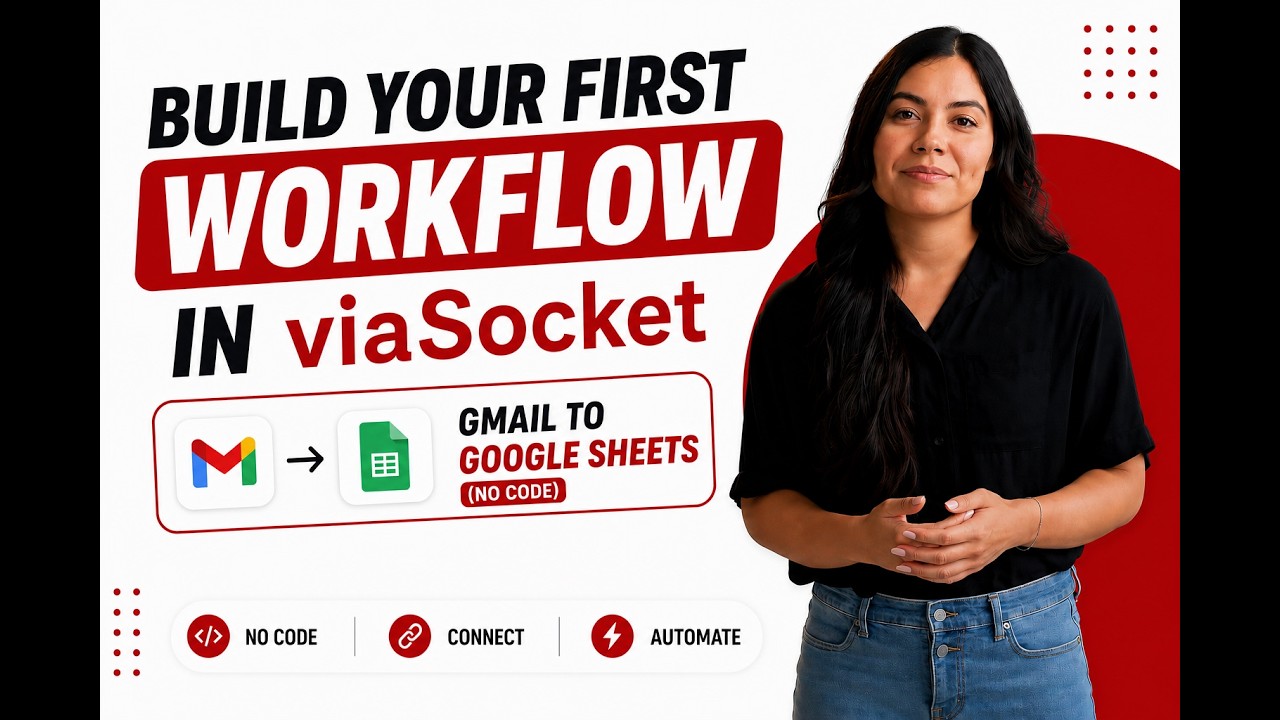
Learn how to build your first workflow
Follow a simple walkthrough to create, test, and launch your first automation.
- 1
Connect your apps
Link the apps you want to automate.
- 2
Configure your workflow
Set up triggers, actions, and map your data.
- 3
Test & publish
Test your workflow and publish it.
Trusted by Thousands. Recognized by the Best.
Recognized by leading review platforms and trusted by 10,000+ businesses worldwide.



From idea to automation.
AI will build it for you
Just describe the task in plain English. viaSocket AI selects the right apps, builds the workflow, maps the fields, and prepares everything for review before you publish.
Learn to build automation
Step-by-step video tutorials to help you connect apps, automate workflows, and save time.
Learn how to automate Zoho Connect and Microsoft Teams workflows.
Learn how to automate Zoho Connect and Microsoft Teams workflows.
Learn More About Automation

How viaSocket Works | A Complete Guide
Explore viaSocket, a no-code AI-powered automation platform that connects 2,000+ apps to automate repetitive tasks. Learn how it works, set up triggers and actions, and start automating your day.

5 Simple Automation Hacks to Make Your Team Free
Five practical automation hacks to cut repetitive tasks and boost productivity using viaSocket, covering lead generation, onboarding, accounting, support, and HR.
What is Workflow Automation - Definition, Importance & Benefits | A Complete Guide
Explore workflow automation: its definition, benefits, how it works, real-world examples, and how to automate with viaSocket.
What are Webhooks - Definition, Working, Usage & Examples | A Complete Guide
Discover what webhooks are, how they work, and when to use them. Compare push-based webhooks with APIs and polling, with practical examples and ViaSocket integration.
viaSocket Support
We're here to help

Instant answers
AI assistant available 24/7
Expert support
Connect with our specialists
Trusted & secure
Your data is safe with us
Start automating Zoho Connect and Microsoft Teams free
No credit card required. Set up your first workflow in minutes.
About Zoho Connect
From ideas to execution, Zoho Connect is your organization's private social network that redefines the way your employees and teams share information and collaborate with each other.
Learn moreAbout Microsoft Teams
Microsoft Teams is a collaboration platform that integrates people, content, and tools to enhance teamwork and communication. It offers chat, video conferencing, file sharing, and app integration to streamline workflows and improve productivity.
Learn moreSimilar apps


Frequently Asked Questions
Sign up for a free viaSocket account, then authorize both your Zoho Connect and Microsoft Teams accounts. From there, pick a trigger in one app and an action in the other. Your first workflow can be live in under five minutes.
Yes. viaSocket uses instant triggers where available, so data moves between Zoho Connect and Microsoft Teams as soon as the event happens. Scheduled polling triggers run at a maximum interval of 15 minutes.
Yes. You can map specific fields, apply filters to skip records that do not match your conditions, and transform values before they reach Microsoft Teams. No coding required.
Yes. You can set up a workflow where Zoho Connect triggers actions in Microsoft Teams, and a separate workflow where Microsoft Teams triggers actions in Zoho Connect. Both run independently and in real time.
viaSocket logs every run so you can see exactly what succeeded and what failed. Failed tasks can be retried from the dashboard without re-configuring the workflow.
Yes, there is a free plan that covers basic workflows between Zoho Connect and Microsoft Teams. Paid plans unlock higher task limits, faster polling, and advanced features like multi-step workflows and conditional logic.
No. The entire Zoho Connect and Microsoft Teams integration is built through a visual, point-and-click interface. Code blocks are available if you want them, but they are never required.

