
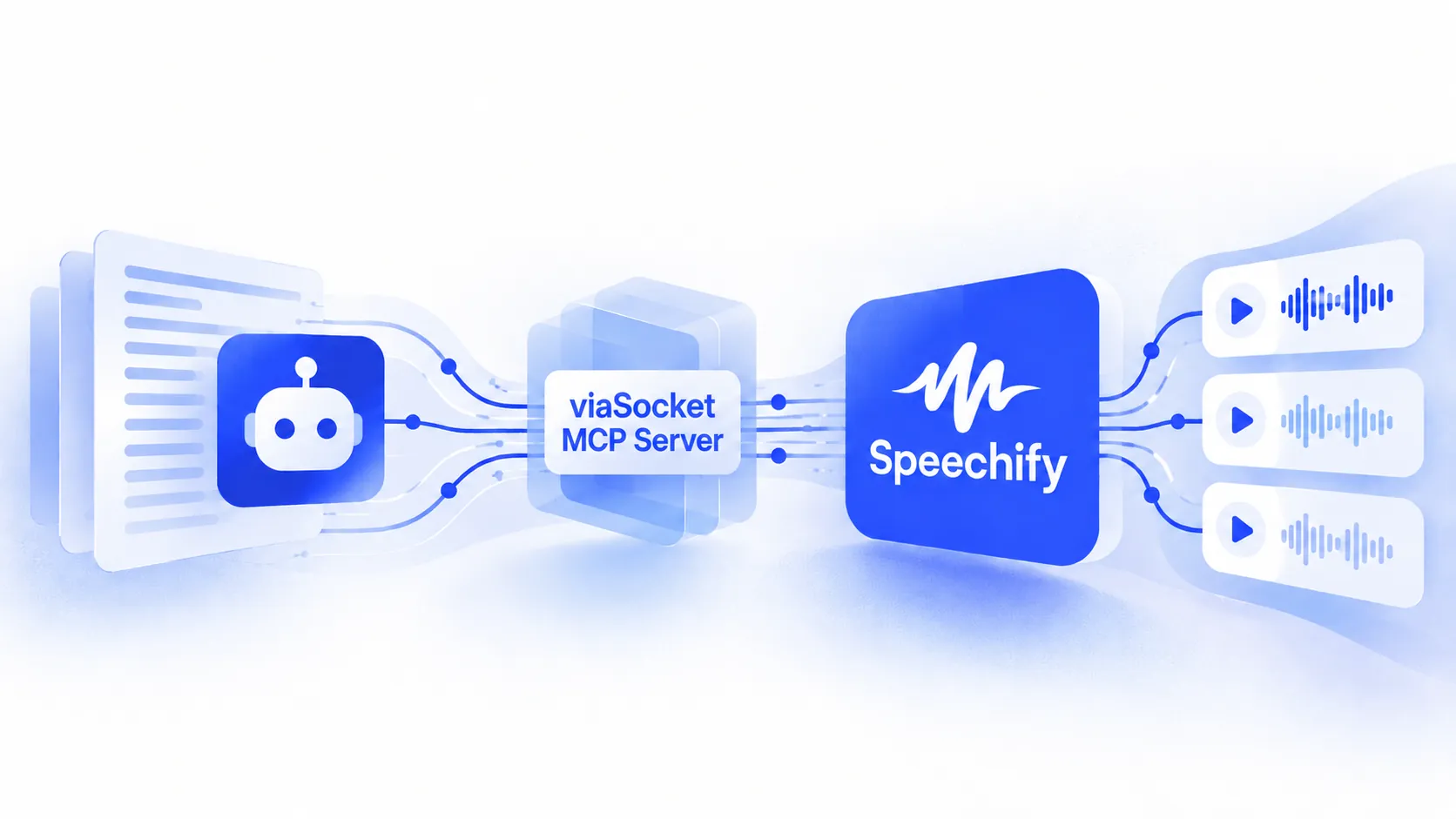
Speechify MCP Server: Connect Speechify with AI Agents
AI assistants are good at writing. They can summarize a meeting, draft an update, or explain a long document in plain words. Then they hit a wall. They hand you text, and you still have to carry that text over to another tool to turn it into audio.
An MCP server removes that wall. Your AI agent can call Speechify directly, so a request like "turn this summary into audio" becomes one step instead of five.
This post explains how the Speechify MCP server works, what your agent can do with it, and how to set it up using Mushrooms, viaSocket's product for MCP servers.
What Is MCP, in Plain Words?
MCP stands for Model Context Protocol. It is an open protocol that standardizes how applications give context and tools to language models. Think of it as a common plug. Any AI client that supports MCP can talk to any MCP server, without custom code for each pairing.
An MCP server exposes a set of actions, and the AI decides when to use them. You say what you want in normal language. The agent picks the right action, fills in the details, and runs it.
That is the difference from a classic automation. A normal workflow waits for a trigger and runs the same steps every time. An agent responds to what you ask in the moment.
What Your AI Agent Can Do with Speechify
The Speechify MCP server gives your AI client four actions to use as tools.
Action | What It Does | Example Prompt |
|---|---|---|
Convert Text to Speech | Turns text or SSML into audio | "Turn this project update into audio." |
Show Available Voices | Lists all the voices you can use | "Which voices are available? Suggest one for a calm tone." |
Create Custom Voice | Creates a custom voice | "Create a custom voice for our training videos." |
Delete Voice | Permanently deletes a voice | "Remove the old test voice from my account." |
Convert Text to Speech is the one you will use most. It also accepts SSML, which is a markup format that gives you control over how text is spoken, such as pauses and emphasis.
An agent can also chain these together. Ask it to check the available voices, pick a fitting one, and then narrate your text. You describe the outcome, and the agent works out the steps.
Meet Mushrooms, viaSocket's MCP Product
Speechify's MCP server runs on Mushrooms, viaSocket's product for MCP servers. Mushrooms is a layer that gives your AI client the ability to act inside the apps you already use. Instead of only talking about your work, your agent can do things in those apps.
Here is how it is set up:
Clusters. Each MCP server you create is called a cluster, and it gets its own URL. You paste that URL into your AI client, and the agent gains access to every action you have connected.
2,000+ apps. Speechify is one of many apps you can add to the same cluster, so one URL can cover your whole stack.
Per-action permissions. You choose exactly what the AI can do, one action at a time. Nothing runs outside your rules.
Log history. Every action is recorded, so you can see what happened and when.
OAuth connections. You authorize each app yourself, and you can revoke access at any time.
Mushrooms works with any client that supports MCP, including Claude, ChatGPT, Cursor, Windsurf, Gemini, Copilot, Continue, Cline, Zed, Cody and Amp.
You can also find the same Speechify server through the viaSocket MCP page for Speechify, which lists the four actions and walks through the setup.
How to Connect Speechify to Your AI Agent
The setup takes a few minutes and follows three steps.
Get your cluster URL. Open the Speechify page on Mushrooms and click the button to get your cluster (MCP server) URL. You will sign in first.
Choose your tools and actions. Add Speechify to the cluster and decide which of the four actions your agent may use.
Connect your AI client. Paste the URL into your client, whether that is Claude, Cursor, ChatGPT or another MCP client. Then ask it to do something with Speechify.
Mushrooms is free to use under a fair usage policy, with no credit card needed to start.
A Small Safety Habit Worth Adopting
Of the four actions, Delete Voice is permanent. That is a good place to use the per-action controls. You can give your agent full access to Convert Text to Speech and Show Available Voices, and keep Delete Voice switched off or behind your approval.
The same thinking applies to Create Custom Voice. It is fine to allow, but you may want to know when it happens.
Prompts to Try Once You Are Connected
Start with simple requests and build up.
"List the Speechify voices I can use and tell me which one sounds most professional."
"Convert this paragraph to speech with a short pause after each sentence."
"Summarize the text below in under 100 words, then turn the summary into audio."
"Create a custom voice and use it to narrate this announcement."
Notice the third one. The agent does the summarizing itself, then passes the result to Speechify. That kind of mixed task, where thinking and acting happen together, is where MCP is strongest.
MCP Agents vs Workflows: When to Use Which
Both approaches have a place, and they are not rivals.
| MCP Agent | Workflow Automation |
|---|---|---|
Starts with | Your request in chat | A trigger event in another app |
Best for | One-off or varied tasks | Repeated tasks that follow the same steps |
Control | You guide it as you go | Rules are set once, then it runs |
Example | "Narrate this draft and pick a good voice" | "Narrate every new Google Doc update" |
If you do the same thing every day, a workflow is the better fit. If every request looks a little different, an agent is more flexible.
Want Repeatable Audio Workflows? Explore These Too
If you find yourself asking your agent for the same thing again and again, that is a sign it should become a workflow. viaSocket has a collection of 13 ways to automate Speechify with Google Docs, with each idea ready to build in one click.
A few of them show what is possible:
Narrate an updated Google Doc and save the audio to a shared Google Drive folder
Narrate a new WordPress post and add the audio link back to the post
Turn a new Calendly booking into an audio brief for the sales rep, sent through Telegram
Extract the key steps from a training document with AI, then narrate only those steps
You do not need to pick one path. Many teams use an agent for exploring and drafting, then turn the best ideas into workflows.
FAQ
What is the Speechify MCP server?
It is a server that lets AI clients such as Claude, ChatGPT and Cursor use Speechify actions as tools. The agent can convert text to speech, list voices, create a custom voice and delete a voice.
Which AI clients does it work with?
Any client that supports MCP. Mushrooms lists Claude, ChatGPT, Cursor, Windsurf, Gemini, Copilot, Continue, Cline, Zed, Cody and Amp, and more are being added.
Is it safe to let an AI agent use my Speechify account?
You stay in control. Each app connection uses OAuth, permissions are set per action, and every action is logged. You can also revoke a connection whenever you like.
Do I need to write code?
No. You get a URL, choose your actions, and paste the URL into your AI client.
Is Mushrooms free?
Yes. It is free to use under a fair usage policy. Enterprises that need more can contact the sales team.
What if I need an action that is not listed?
You can request a new action for Speechify from its page.
Final Thoughts
Text-to-speech is most useful when it is easy to reach. Putting Speechify behind an MCP server means your AI agent can reach it for you, in the middle of a task, without you switching tabs.
Start small. Connect one cluster, allow the safe actions, and ask your agent for one piece of audio. Once you see it work, the rest of the setup tends to follow.

