Windsurf Integration
Connect Windsurf's Cascade AI to 2,500+ apps via MCP
Overview
Mushrooms is viaSocket's MCP server platform. Once you have your MCP Endpoint URL from Mushrooms, you can connect it to Windsurf IDE in a few simple steps — without leaving your coding environment. Cascade (Windsurf's AI assistant) will then be able to act on all your connected apps directly from the editor.
essential: Complete the Mushroom setup first and copy your MCP Endpoint URL from the Claude Configuration panel on your cluster dashboard. You'll paste it here in Step 3. |
Quick Start
Three steps to get Windsurf acting on your Mushrooms (apps):
Copy your MCP Endpoint URL from your Mushrooms cluster dashboard.
Open Windsurf Settings and navigate to the Cascade section.
Add your MCP URL as a custom server.
Step-by-Step: Configure Mushrooms MCP in Windsurf
Step 1: Open Windsurf Advanced Settings
In Windsurf IDE, go to:
Windsurf → Settings → Advanced Settings
Alternatively, open the Command Palette and select Open Windsurf Settings Page.

Step 2: Locate the Cascade Section
Scroll down to the Cascade section. Here you can:
View currently connected MCP servers
Add new servers
Access the raw config file directly at
mcp_config.json
Step 3: Add a Custom Server
Click "Add Server". From the options that appear, click "Add custom server +". This opens the mcp_config.json file directly in the editor.
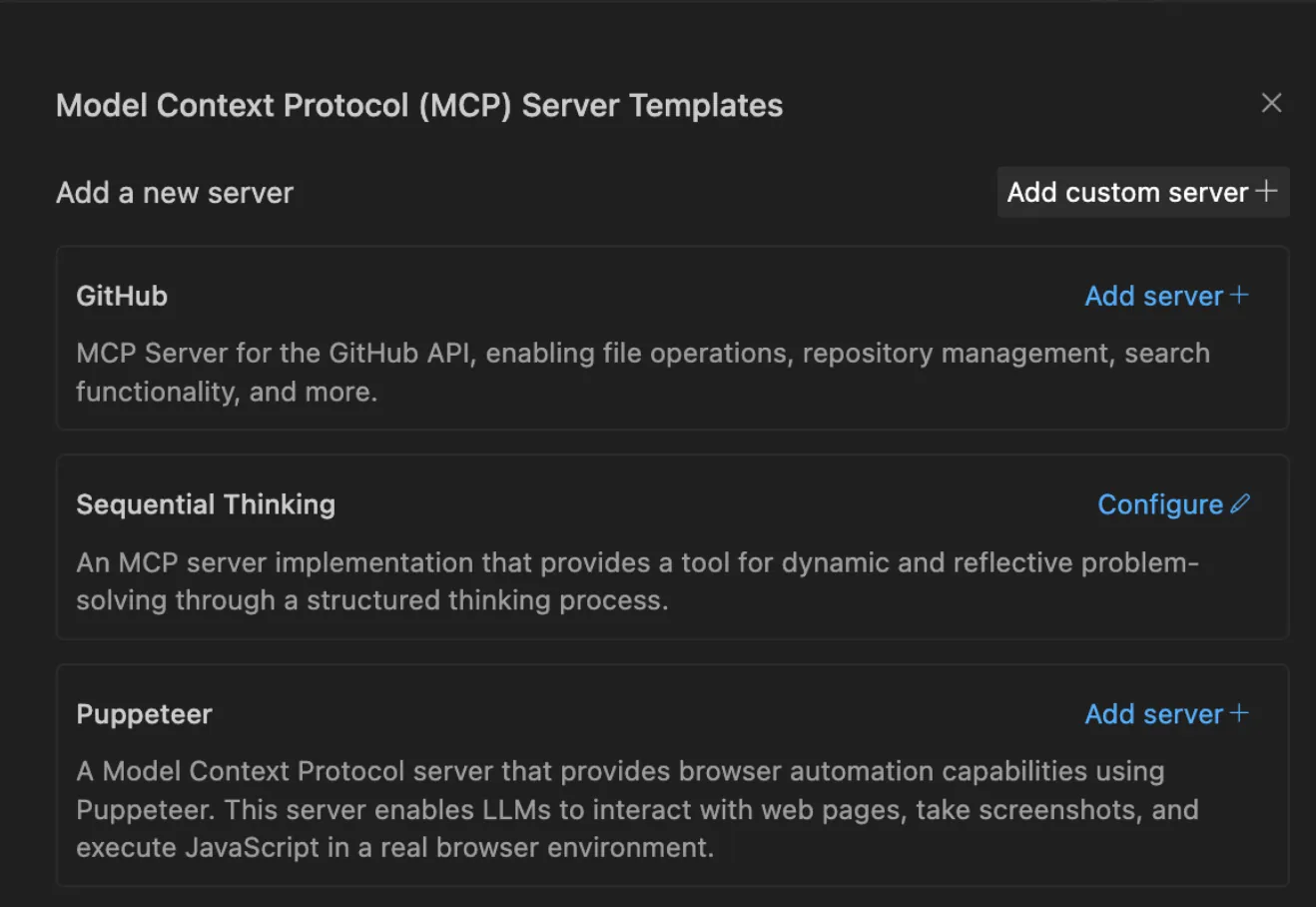
Step 4: Paste Your MCP Configuration
In mcp_config.json (located at ~/.codeium/windsurf/mcp_config.json), paste the following — replacing the placeholder with your actual MCP Endpoint URL from Mushrooms:
json
{
"mcpServers": {
"mushroom": {
"serverUrl": "https://mcp.viasocket.com/mcp/YOUR_UNIQUE_ID",
"transport": "sse"
}
}
}Save the file.
security: Keep this URL private. It authorises Cascade to perform actions on all your connected accounts. Do not share it publicly or commit it to version control. |
Note: The Windsurf config uses |
Step 5: Restart Windsurf
Restart the IDE to apply the configuration. Once Windsurf reloads, Cascade will have access to your Mushrooms cluster and all its connected apps.
Example Usage
Once connected, type natural language instructions to Cascade in Windsurf:
While building a feature:
"Log this API error to my Bug Tracker sheet with the timestamp and endpoint name."
"Create a Linear issue for this TODO comment — title it 'Fix null check in auth middleware'."
"Add a row to my Deployments sheet: branch main, status success, time now."
While reviewing or shipping:
"Send a Slack message to #backend: PR #42 is ready for review."
"Create a Notion page under 'Release Notes' with a summary of today's changes."
"Update the HubSpot deal stage to 'In Development' for client Acme Corp."
For team coordination:
"Look up the last 5 rows of my Sprint Tracker sheet and tell me what's overdue."
"Send an email via Gmail to the QA team: staging build is live at staging.example.com."
Cascade will use your connected Mushrooms (apps) to perform these actions automatically — without switching windows or writing integration code.