

How to Automate GPT-trainer Workflows with viaSocket: 7 Practical Use Cases
If you run a GPT-trainer chatbot, you already know the annoying part isn’t building it. It’s keeping it updated. New form responses, new documents, new support tickets - all of it needs to reach your bot’s knowledge base or trigger a session, and doing that by hand gets old fast.
That’s where viaSocket comes in. It sits between GPT-trainer and the other apps you use, watching for events and pushing data across without you touching a keyboard. Below are seven ways teams are actually using this connection right now.
What GPT-trainer Actually Does
GPT-trainer lets you build a chatbot trained on your own data, PDFs, URLs, FAQs, whatever you feed it, and then deploy it on a website or inside another product. Under the hood, it exposes chatbots, agents, sessions, messages, and data sources as separate objects you can manage through its API. That structure is exactly why it plays so well with automation: every one of those objects can be created or updated by an external trigger instead of a person clicking around in a dashboard.
Why Automate GPT-trainer Instead of Managing It Manually
Manually updating a chatbot works fine when you have five customers. It falls apart at five hundred. A few reasons teams move to automation:
New information (a form answer, a CRM note, a support ticket) often needs to reach the bot within minutes, not at the end of the day.
Copy-pasting content into data sources is repetitive and easy to mess up.
Chatbot sessions tied to specific events (a signup, a purchase, a missed call) are hard to start on time without a trigger doing it for you.
viaSocket handles the “if this happens, do that” part so your team can focus on what the chatbot actually says, not on feeding it.
7 Practical Use Cases for GPT-trainer Automation
1. Form Submission Creates a New Chatbot
If you’re running an agency or a SaaS product where each client or project needs its own bot, you don’t want someone manually spinning up a new chatbot every time a client signs up. Connect your intake form (Google Forms, Typeform, or a custom form) to GPT-trainer, and a submission automatically creates a new chatbot with the client’s name, settings, and default agent already in place.
2. New Form Response Adds a Q&A Source
Not every form is about onboarding. Some are just collecting answers you want your bot to know, internal FAQs from your team, feedback that clarifies a policy, or support answers logged by an agent. Each new response can be pushed straight into GPT-trainer as a Q&A data source, so the bot’s knowledge grows the moment someone submits an answer, without anyone opening the training panel.

3. New Content or URL Adds a Data Source
Publishing a new help article, blog post, or product page? That page is only useful to your chatbot if it’s actually been trained on it. Set up a trigger so that whenever a new URL is published (from your CMS, a spreadsheet of links, or an RSS feed), it gets added to GPT-trainer as a data source automatically. Your bot stays current with your docs without a manual re-training step.
4. New Event Starts a Chatbot Session
Sometimes you want the bot to reach out first. A new signup, a cart abandonment, a booked demo, these are all events that can kick off a chatbot session proactively instead of waiting for the user to open the chat widget. This turns GPT-trainer from a passive support tool into something closer to an automated concierge.
5. App Event Sends a Message to the Chatbot
This is the reverse direction: something happens in another app, and you want the chatbot to know about it right away, mid-conversation. A payment failing, a shipment getting delayed, a ticket getting escalated, any of these can trigger a message sent into an active GPT-trainer session so the bot’s next reply reflects reality instead of stale information.
6. New Data Source Gets Organized and Tagged
As a chatbot’s knowledge base grows, it turns into a pile of loosely related documents if nobody’s tagging things. An automation can watch for new data sources added to GPT-trainer and automatically tag or group them by category, department, or project, based on naming patterns or metadata from wherever the source came from. It’s a small habit that keeps a large knowledge base searchable and easy to hand off to a teammate later.
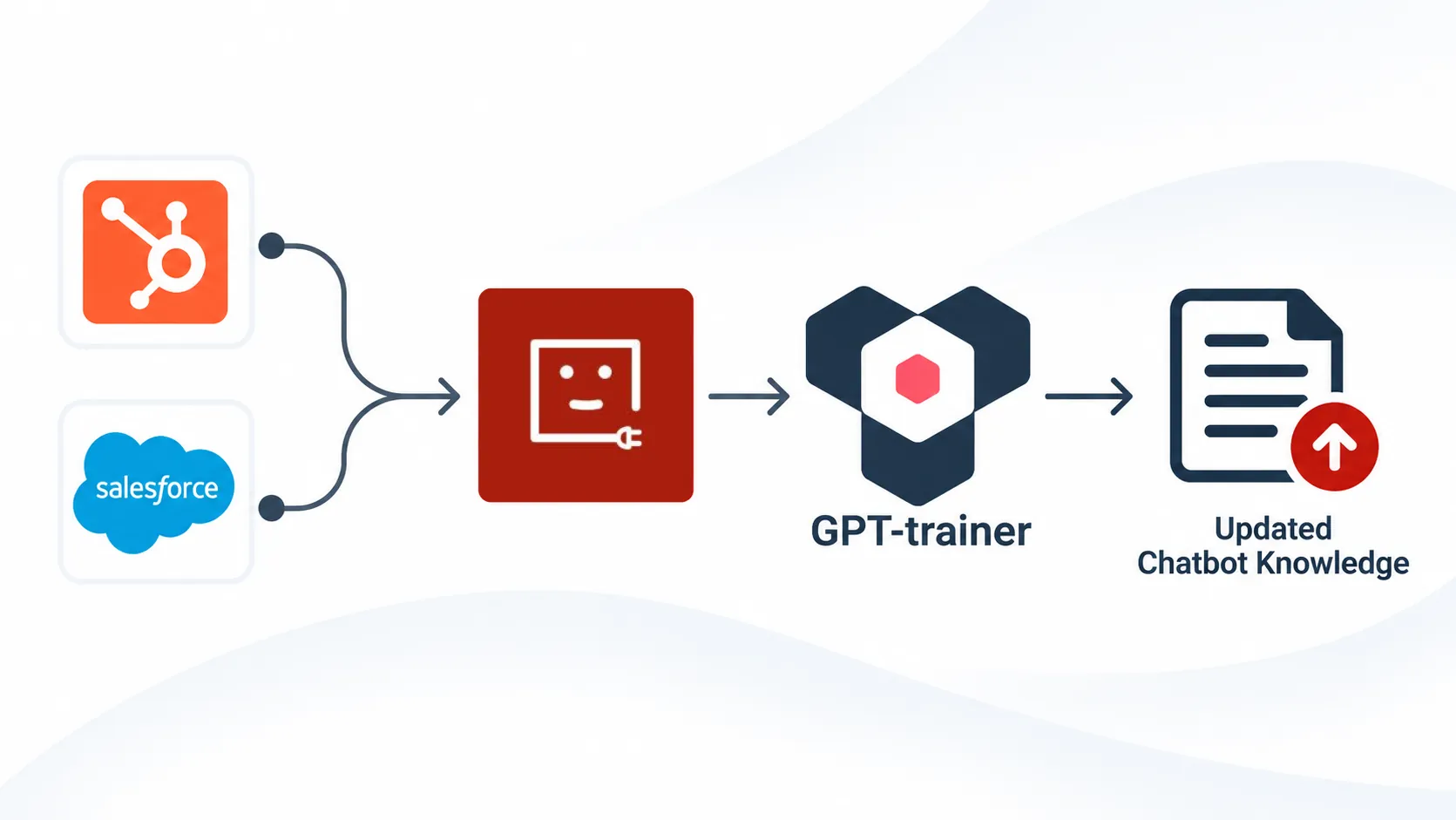
7. CRM or Support Event Updates Chatbot Knowledge
When a deal closes, a ticket gets resolved, or a customer’s plan changes in your CRM or helpdesk, that context is often exactly what your chatbot needs to answer the next question correctly. Wiring CRM or support events into GPT-trainer means the bot’s knowledge reflects the account’s actual status, not whatever was true when it was last trained.
Use Cases at a Glance
Use Case | Trigger App | Action in GPT-trainer |
|---|---|---|
Form tool (Typeform, Google Forms) | Create chatbot | |
Form tool | Add Q&A data source | |
CMS, RSS, spreadsheet | Add URL data source | |
CRM, e-commerce app | Start chatbot session | |
Any connected app | Send message to session | |
GPT-trainer itself | Tag/organize data source | |
CRM, helpdesk | Update chatbot knowledge |
Most of these don’t need custom code. If you can describe the trigger and the outcome, there’s usually a workflow template close enough to start from and adjust.
Getting Started
You don’t need to build all seven at once. Pick the one causing the most manual work right now, usually it’s either the Q&A update or the CRM sync, and set that up first. Once you see how the trigger-to-action flow behaves in GPT-trainer, adding the rest takes a fraction of the time.
viaSocket already covers most of the apps teams pair with GPT-trainer, forms, CRMs, helpdesks, and CMS platforms, so you’re rarely stuck writing a custom connector just to get two tools talking. And if a use case here doesn’t map cleanly to your setup, the underlying building blocks are flexible enough to bend around it.
For the technical details on what GPT-trainer’s API actually exposes, chatbots, agents, sessions, and data sources, their own documentation is worth a look before you design a workflow around it.
FAQ
Do I need to know how to code to automate GPT-trainer with viaSocket?
No. These are trigger-and-action workflows, not scripts. You pick what starts the automation and what should happen in GPT-trainer as a result, and viaSocket handles the connection between them.
Can one automation update multiple chatbots at once?
Yes, if your trigger includes a way to identify which chatbot or client the event belongs to (like a client ID on a form), you can route the update to the right chatbot instead of a single fixed one.
What happens if GPT-trainer’s API changes?
viaSocket’s connectors are maintained to track changes on the app side, so most updates on GPT-trainer’s end won’t break an existing automation. If something does need adjusting, it’s usually a quick fix rather than a full rebuild.
Is this only useful for customer support bots?
Not at all. Internal knowledge bots, sales qualification bots, and onboarding assistants all benefit from the same idea: keeping the bot’s data fresh without manual work.
Automating the boring parts of running a GPT-trainer chatbot isn’t about replacing the work that makes the bot good. It’s about making sure the bot actually has what it needs to do that work well, all the time, without someone remembering to feed it.

