



Connect ClickUp and AutoQuote3D
Integrate ClickUp with AutoQuote3D to automate workflows, sync data between apps, and eliminate repetitive tasks with AI-powered automation.
Find Quotes in AutoQuote3D when When a new task is created in ClickUp
Update Order in AutoQuote3D when When a new task is created in ClickUp
Find Orders in AutoQuote3D when When a new task is created in ClickUp
Get Order Files from AutoQuote3D when When a new task is created in ClickUp
Get Store Analytics in Autoquote3d when When a new task is created in ClickUp
Popular ClickUp + AutoQuote3D flows
Start from a real workflow other teams are already running.
Choose a trigger
ClickUp
When this happens...
When a new task is created
When a task is updated
New Or Updated Task Comment
Choose an action
AutoQuote3D
Automatically do this!
Find Quotes
Update Order
Find Orders
Get Order Files
Get Store Analytics
Find Quotes in AutoQuote3D when When a new task is created in ClickUp
Use this flowUpdate Order in AutoQuote3D when When a new task is created in ClickUp
Use this flowFind Orders in AutoQuote3D when When a new task is created in ClickUp
Use this flowGet Order Files from AutoQuote3D when When a new task is created in ClickUp
Use this flowGet Store Analytics in Autoquote3d when When a new task is created in ClickUp
Use this flowFind Quotes in AutoQuote3D when When a task is updated in ClickUp
Use this flowUpdate Order in AutoQuote3D when When a task is updated in ClickUp
Use this flowFind Orders in AutoQuote3D when When a task is updated in ClickUp
Use this flowGet Order Files from AutoQuote3D when When a task is updated in ClickUp
Use this flowGet Store Analytics in Autoquote3d when When a task is updated in ClickUp
Use this flowSupported Triggers & Actions
Everything you can automate between ClickUp and AutoQuote3D.
When this happensTriggers
A trigger is an event that starts a workflow.
When a new task is created
Runs the workflow automatically whenever a new task is created.
When a task is updated
Runs the workflow automatically whenever any task is updated.
New Or Updated Task Comment
Runs when a new or updated comment is posted on a task in a chosen workspace, space, folder, or list.
New Quote
Runs when a new quote is created in your Business.
New Order
Runs when a new order is placed, optionally only for chosen statuses.
Do thisActions
Action is the task that follows automatically within your ClickUp integrations.
Find Lists in Space
Retrieve all lists in a space, including lists inside folders and those without a folder.
List Workspaces
List the teams (workspaces) accessible to the connected account.
List Spaces
List spaces in a team. Optionally filter by archived status and return selected fields.
List Tasks
Apply reusable components to workspace, space, folder, and list dropdowns
List Folders
List folders in a space, optionally filtering by archived status.
Create Task
Create a task in a list and set title or markdown description, assignees (by ID or email), group assignees, tags, status, priority, start/due dates (with time), time estimate, watchers, custom fields, parent, points, links, and notify/check options.
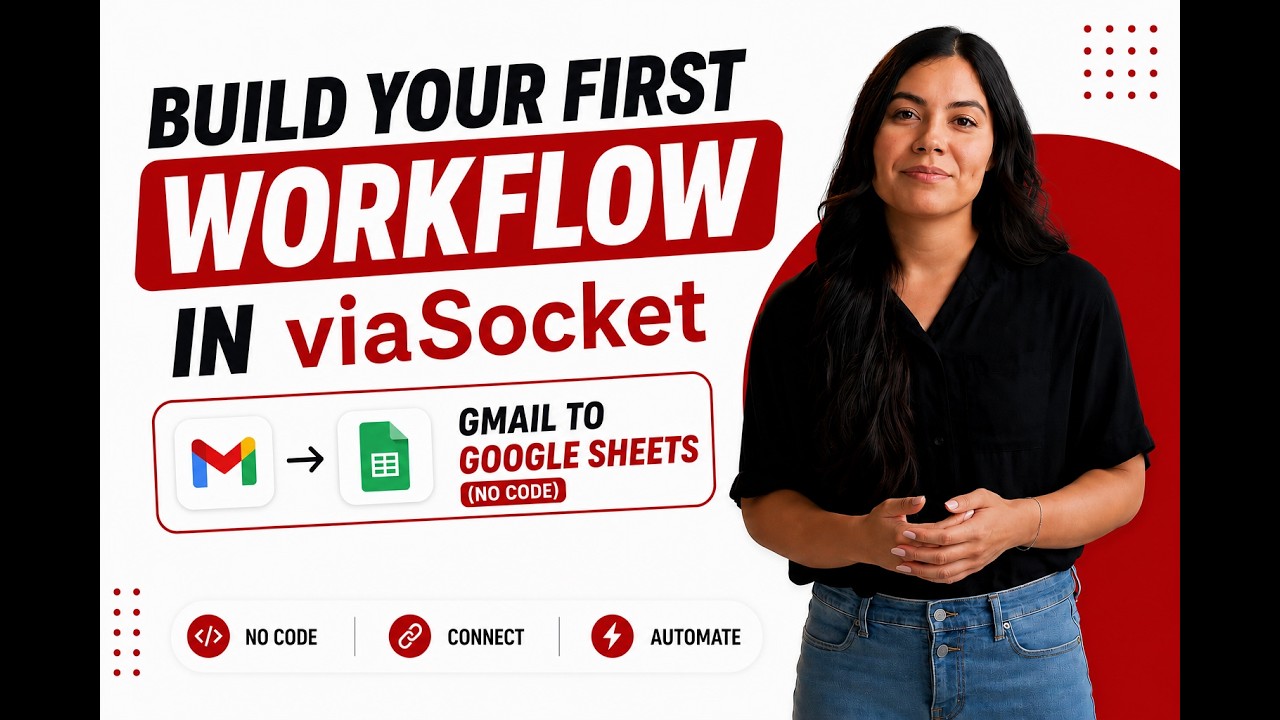
Learn how to build your first workflow
Follow a simple walkthrough to create, test, and launch your first automation.
- 1
Connect your apps
Link the apps you want to automate.
- 2
Configure your workflow
Set up triggers, actions, and map your data.
- 3
Test & publish
Test your workflow and publish it.
Trusted by Thousands. Recognized by the Best.
Recognized by leading review platforms and trusted by 10,000+ businesses worldwide.




From idea to automation.
AI will build it for you
Just describe the task in plain English. viaSocket AI selects the right apps, builds the workflow, maps the fields, and prepares everything for review before you publish.
Learn More About Automation

4 Ways to Automate ClickUp with viaSocket
Discover how viaSocket connects ClickUp to your tools to automate task creation, send instant notifications, and organize files. Streamline workflows, reduce manual data entry, and boost team efficiency.

How viaSocket Works | A Complete Guide
Explore viaSocket, a no-code AI-powered automation platform that connects 2,000+ apps to automate repetitive tasks. Learn how it works, set up triggers and actions, and start automating your day.

5 Simple Automation Hacks to Make Your Team Free
Five practical automation hacks to cut repetitive tasks and boost productivity using viaSocket, covering lead generation, onboarding, accounting, support, and HR.
What is Workflow Automation - Definition, Importance & Benefits | A Complete Guide
Explore workflow automation: its definition, benefits, how it works, real-world examples, and how to automate with viaSocket.
viaSocket Support
We're here to help

Instant answers
AI assistant available 24/7
Expert support
Connect with our specialists
Trusted & secure
Your data is safe with us
Start automating ClickUp and AutoQuote3D free
No credit card required. Set up your first workflow in minutes.
About ClickUp
Plan, track, and manage any type of work with project management that flexes to your team's needs.
Learn moreSimilar apps





About AutoQuote3D
Instant quoting and order management software for 3D print shops: automate quotes, paid orders, fulfillment tracking and analytics.
Learn moreSimilar apps
Frequently Asked Questions
Sign up for a free viaSocket account, then authorize both your ClickUp and AutoQuote3D accounts. From there, pick a trigger in one app and an action in the other. Your first workflow can be live in under five minutes.
Yes. viaSocket uses instant triggers where available, so data moves between ClickUp and AutoQuote3D as soon as the event happens. Scheduled polling triggers run at a maximum interval of 15 minutes.
Yes. You can map specific fields, apply filters to skip records that do not match your conditions, and transform values before they reach AutoQuote3D. No coding required.
Yes. You can set up a workflow where ClickUp triggers actions in AutoQuote3D, and a separate workflow where AutoQuote3D triggers actions in ClickUp. Both run independently and in real time.
viaSocket logs every run so you can see exactly what succeeded and what failed. Failed tasks can be retried from the dashboard without re-configuring the workflow.
Yes, there is a free plan that covers basic workflows between ClickUp and AutoQuote3D. Paid plans unlock higher task limits, faster polling, and advanced features like multi-step workflows and conditional logic.
No. The entire ClickUp and AutoQuote3D integration is built through a visual, point-and-click interface. Code blocks are available if you want them, but they are never required.

