


Connect Google Sheets and ApexVerify
Integrate Google Sheets with ApexVerify to automate workflows, sync data between apps, and eliminate repetitive tasks with AI-powered automation.
Create Verification Batch in ApexVerify when Row Added Or Updated in Google Sheets
Verify Email or Phone with ApexVerify when Row Added Or Updated in Google Sheets
Launch Batch Verification in ApexVerify when Row Added Or Updated in Google Sheets
Get Batch Details from ApexVerify when Row Added Or Updated in Google Sheets
Export Batch Results from ApexVerify when Row Added Or Updated in Google Sheets
Popular Google Sheets + ApexVerify flows
Start from a real workflow other teams are already running.
Choose a trigger
Google Sheets
When this happens...
Row Added Or Updated
Choose an action
ApexVerify
Automatically do this!
Create Verification Batch
Verify Email or Phone
Launch Batch Verification
Get Batch Details
Export Batch Results
Get Account Credits
List Batches
Create Verification Batch in ApexVerify when Row Added Or Updated in Google Sheets
Use this flowVerify Email or Phone with ApexVerify when Row Added Or Updated in Google Sheets
Use this flowLaunch Batch Verification in ApexVerify when Row Added Or Updated in Google Sheets
Use this flowGet Batch Details from ApexVerify when Row Added Or Updated in Google Sheets
Use this flowExport Batch Results from ApexVerify when Row Added Or Updated in Google Sheets
Use this flowGet Account Credits from ApexVerify when Row Added Or Updated in Google Sheets
Use this flowList Batches from ApexVerify when Row Added Or Updated in Google Sheets
Use this flowUpdate Spreadsheet Row in Google Sheets when New Verification Batch in ApexVerify
Use this flowList Rows in Sheet from Google Sheets when New Verification Batch in ApexVerify
Use this flowDelete Rows from Google Sheets when New Verification Batch in ApexVerify
Use this flowSupported Triggers & Actions
Everything you can automate between Google Sheets and ApexVerify.
When this happensTriggers
A trigger is an event that starts a workflow.
Row Added Or Updated
Runs when row added or updated
New Verification Batch
Runs when a new verification batch is created in your account (uses configured polling window).
Updated Verification Batch
Runs when a verification batch is updated to completed, with its result statistics.
Do thisActions
Action is the task that follows automatically within your Google Sheets integrations.
Update Spreadsheet Row
Update columns in sheet row
List Rows in Sheet
Get rows from a sheet tab as objects with row numbers. Supports an optional header row, offset/limit paging, and fetching from the last row.
Delete Rows
Delete one or more rows from a specific sheet in a Google Spreadsheet using a row range or row numbers.
Add New Row to Sheet
Conditionally require column selection only for header-based mapping and support direct column-letter value mapping when no header row is used.
Lookup Spreadsheet Rows
Find rows in a Google Sheet that match a column value or an advanced filter.
Copy Sheet To Spreadsheet
Copy a sheet to another file
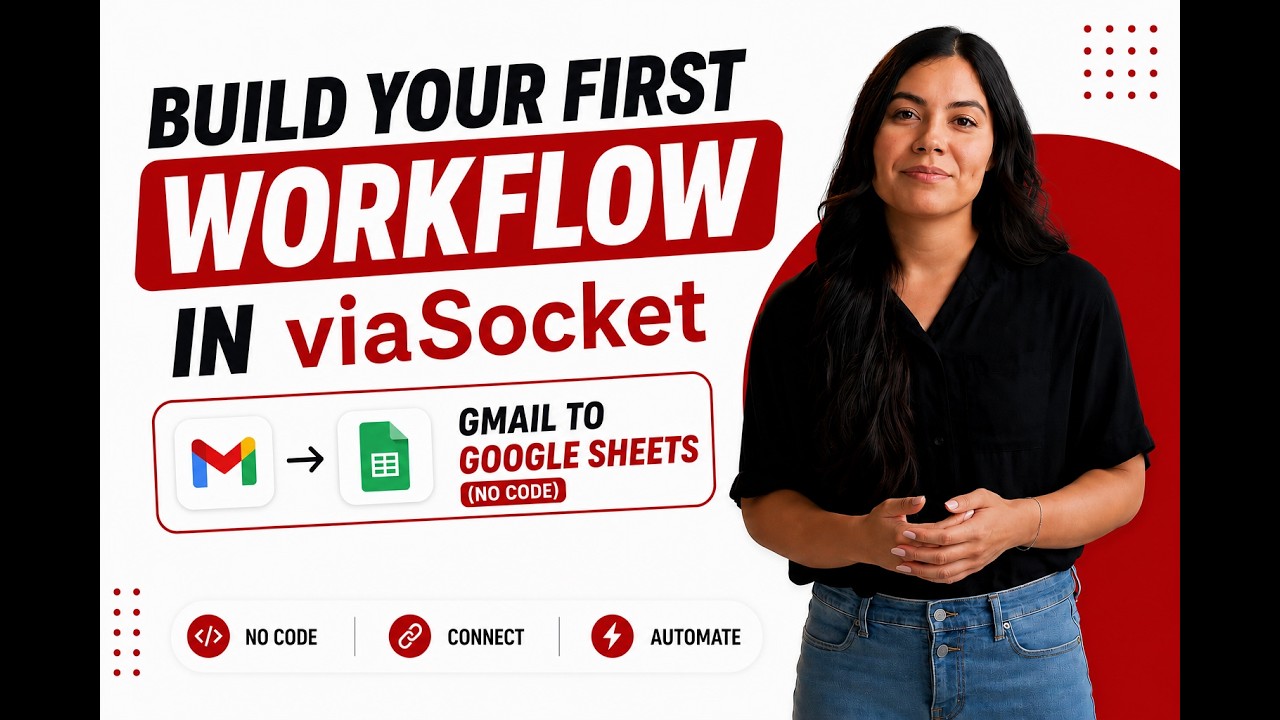
Learn how to build your first workflow
Follow a simple walkthrough to create, test, and launch your first automation.
- 1
Connect your apps
Link the apps you want to automate.
- 2
Configure your workflow
Set up triggers, actions, and map your data.
- 3
Test & publish
Test your workflow and publish it.
Trusted by Thousands. Recognized by the Best.
Recognized by leading review platforms and trusted by 10,000+ businesses worldwide.





From idea to automation.
AI will build it for you
Just describe the task in plain English. viaSocket AI selects the right apps, builds the workflow, maps the fields, and prepares everything for review before you publish.
Learn to build automation
Step-by-step video tutorials to help you connect apps, automate workflows, and save time.
Learn how to automate Google Sheets and ApexVerify workflows.
Learn how to automate Google Sheets and ApexVerify workflows.
Learn how to automate Google Sheets and ApexVerify workflows.

Learn how to automate Google Sheets and ApexVerify workflows.
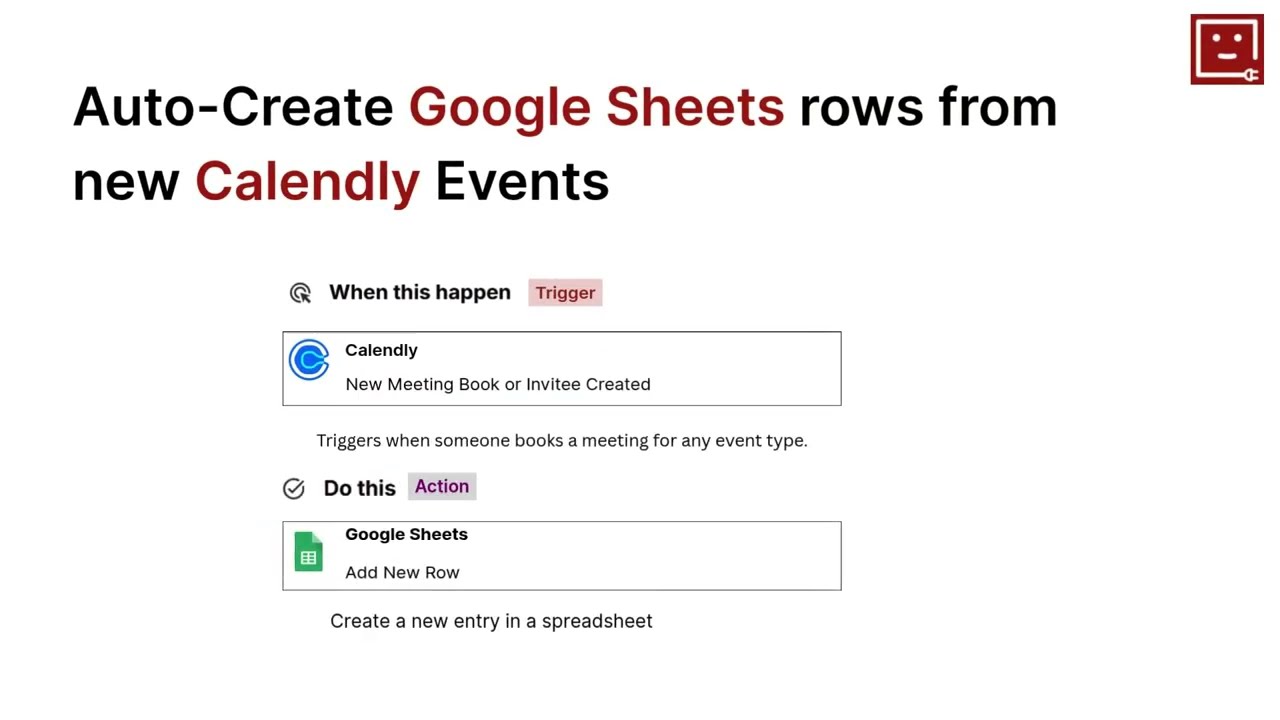
Learn how to automate Google Sheets and ApexVerify workflows.
Learn how to automate Google Sheets and ApexVerify workflows.
Learn More About Automation

Accounting Automation Guide
Master accounting automation with this guide with examples. Explore top tools, steps, and tips to save time, reduce errors, and streamline finances in 2025.

Simple Ways to Automate Google Sheets
Discover how viaSocket automates Google Sheets—turn form responses into rows, track sales and e-commerce data in real time, sync with project management tools, and set reminders with minimal effort.
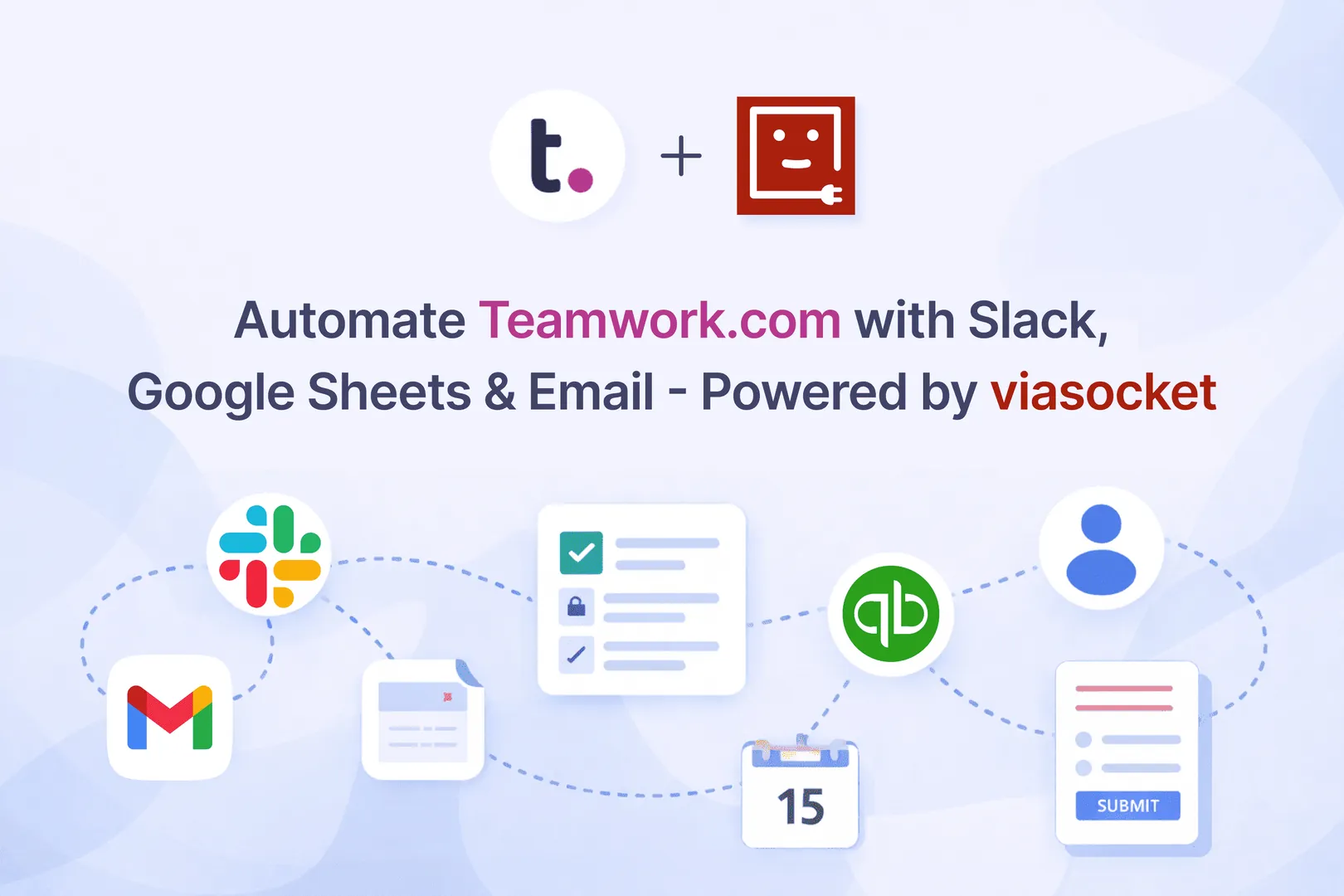
Automate Teamwork.com with Slack, Google Sheets & Email -Powered by viaSocket
Connect Teamwork.com with Slack, Google Sheets, and email using viaSocket to trigger real-time notifications, auto-create tasks from external requests, sync live reports, and automate client updates, deadlines, onboarding, and billing.

How viaSocket Works | A Complete Guide
Explore viaSocket, a no-code AI-powered automation platform that connects 2,000+ apps to automate repetitive tasks. Learn how it works, set up triggers and actions, and start automating your day.
viaSocket Support
We're here to help

Instant answers
AI assistant available 24/7
Expert support
Connect with our specialists
Trusted & secure
Your data is safe with us
Start automating Google Sheets and ApexVerify free
No credit card required. Set up your first workflow in minutes.
About Google Sheets
Google Sheets is a cloud-based spreadsheet application that lets users create, edit, share, and collaborate on spreadsheets in real time.
Learn moreSimilar apps





About ApexVerify
ApexVerify verifies email addresses and phone numbers in real time or in bulk batches to keep contact lists clean and deliverable.
Learn more


Frequently Asked Questions
Sign up for a free viaSocket account, then authorize both your Google Sheets and ApexVerify accounts. From there, pick a trigger in one app and an action in the other. Your first workflow can be live in under five minutes.
Yes. viaSocket uses instant triggers where available, so data moves between Google Sheets and ApexVerify as soon as the event happens. Scheduled polling triggers run at a maximum interval of 15 minutes.
Yes. You can map specific fields, apply filters to skip records that do not match your conditions, and transform values before they reach ApexVerify. No coding required.
Yes. You can set up a workflow where Google Sheets triggers actions in ApexVerify, and a separate workflow where ApexVerify triggers actions in Google Sheets. Both run independently and in real time.
viaSocket logs every run so you can see exactly what succeeded and what failed. Failed tasks can be retried from the dashboard without re-configuring the workflow.
Yes, there is a free plan that covers basic workflows between Google Sheets and ApexVerify. Paid plans unlock higher task limits, faster polling, and advanced features like multi-step workflows and conditional logic.
No. The entire Google Sheets and ApexVerify integration is built through a visual, point-and-click interface. Code blocks are available if you want them, but they are never required.

