


Connect Google Sheets and Google Ads
Integrate Google Sheets with Google Ads to automate workflows, sync data between apps, and eliminate repetitive tasks with AI-powered automation.
Find Campaign By ID Or Name in Google Ads when Row Added Or Updated in Google Sheets
Add Contact to Customer List in Google Ads when Row Added Or Updated in Google Sheets
Find Customer List in Google Ads when Row Added Or Updated in Google Sheets
Set Campaign Status in Google Ads when Row Added Or Updated in Google Sheets
Send Offline Conversions to Google Ads when Row Added Or Updated in Google Sheets
Popular Google Sheets + Google Ads flows
Start from a real workflow other teams are already running.
Choose a trigger
Google Sheets
When this happens...
Row Added Or Updated
Choose an action
Google Ads
Automatically do this!
Find Campaign By ID Or Name
Add Contact to Customer List
Find Customer List
Set Campaign Status
Send Offline Conversions
Run Custom Google Ads Query
Manage Seasonal Adjustment
Manage Asset Group
List Campaign Budgets
Find Seasonal Bid Adjustments
Create Assets
Create Google Ads Campaign
Find Campaign By ID Or Name in Google Ads when Row Added Or Updated in Google Sheets
Use this flowAdd Contact to Customer List in Google Ads when Row Added Or Updated in Google Sheets
Use this flowFind Customer List in Google Ads when Row Added Or Updated in Google Sheets
Use this flowSet Campaign Status in Google Ads when Row Added Or Updated in Google Sheets
Use this flowSend Offline Conversions to Google Ads when Row Added Or Updated in Google Sheets
Use this flowRun Custom Google Ads Query in Google Ads when Row Added Or Updated in Google Sheets
Use this flowManage Seasonal Adjustment in Google Ads when Row Added Or Updated in Google Sheets
Use this flowManage Asset Group in Google Ads when Row Added Or Updated in Google Sheets
Use this flowList Campaign Budgets from Google Ads when Row Added Or Updated in Google Sheets
Use this flowFind Seasonal Bid Adjustments in Google Ads when Row Added Or Updated in Google Sheets
Use this flowSupported Triggers & Actions
Everything you can automate between Google Sheets and Google Ads.
When this happensTriggers
A trigger is an event that starts a workflow.
Row Added Or Updated
Runs when a row is added to, or changed in, one sheet (tab) of a Google Spreadsheet. Choose new rows only, or new and edited rows, optionally only when selected columns change. Each event is one row: its cell values keyed by the header in row 1 (or by column letter when row 1 is not a header), plus _rowNumber, _spreadsheet_id and _sheet_id.
New Lead Form Submitted
Runs when lead form is submitted
Do thisActions
Action is the task that follows automatically within your Google Sheets integrations.
Update Spreadsheet Row
Update one row in a sheet tab by row number, writing only the selected columns. Returns the row after the update. Note: An empty value is skipped, so a cell cannot be cleared with this action. Numeric text is saved as a number.
List Rows in Sheet
Read rows from one tab of a Google Sheet as objects keyed by column name (or by column letter when there is no header row), each with its sheet row number in _rowNumber. Returns up to Row Count rows from Offset Row (all remaining rows if no count), or the last rows first when List From Last Row is Yes. When more rows remain, the response offset is the row number to pass as Offset Row for the next page. An empty tab, or a tab with only a header row, returns success false, a message and an empty data list.
Delete Rows
Permanently delete rows from one sheet (tab) of a Google Spreadsheet, either one consecutive Row Range or a list of Specific Rows, by 1-based row number counting the header row. Rows below the deleted ones move up, so row numbers change afterwards. Returns success, the spreadsheet id, the sheet id and the mode (not the deleted rows); a row number past the end of the sheet or an invalid input fails with an error.
Add New Row to Sheet
Add one row at the end of a sheet tab, writing values into the columns you select. Returns the values written and the new row's number in _rowNumber. Note: Values are entered as if typed: numeric text is saved as a number (leading zeros are lost), dates are recognised, and text starting with = becomes a formula; start a value with ' to keep it as text. Unselected columns stay empty.
Lookup Spreadsheet Rows
Find rows in one sheet (tab) of a Google Spreadsheet that match a column value exactly (Basic filter) or a condition across several columns (Advance filter). Returns the matching rows as objects keyed by column name (or by column letter when there is no header row), each with its sheet row number in _rowNumber, from the top down or, with Search from last row, from the bottom up. Returns up to Row Count rows (all matches if empty). No match returns success true, a message and an empty data list; an empty tab, an unknown sheet or a Lookup Column that is not in the sheet returns success false, a message and an empty data list. Note: The Basic match is case-sensitive and compares the whole cell text, as shown in the sheet, with surrounding spaces ignored.
Copy Sheet To Spreadsheet
Copy one sheet (tab) of a spreadsheet into another spreadsheet, or into the same one. The copy is added as a new tab named Copy of <original name> at the end of the destination, and the source tab is unchanged. Running it again adds another copy. Returns the new tab: sheetId, title, index, sheetType and gridProperties.
Learn how to build your first workflow
Follow a simple walkthrough to create, test, and launch your first automation.
- 1
Connect your apps
Link the apps you want to automate.
- 2
Configure your workflow
Set up triggers, actions, and map your data.
- 3
Test & publish
Test your workflow and publish it.
Trusted by Thousands. Recognized by the Best.
Recognized by leading review platforms and trusted by 10,000+ businesses worldwide.


From idea to automation.
AI will build it for you
Just describe the task in plain English. viaSocket AI selects the right apps, builds the workflow, maps the fields, and prepares everything for review before you publish.
Learn to build automation
Step-by-step video tutorials to help you connect apps, automate workflows, and save time.
Learn how to automate Google Sheets and Google Ads workflows.
Learn how to automate Google Sheets and Google Ads workflows.
Learn how to automate Google Sheets and Google Ads workflows.

Learn how to automate Google Sheets and Google Ads workflows.
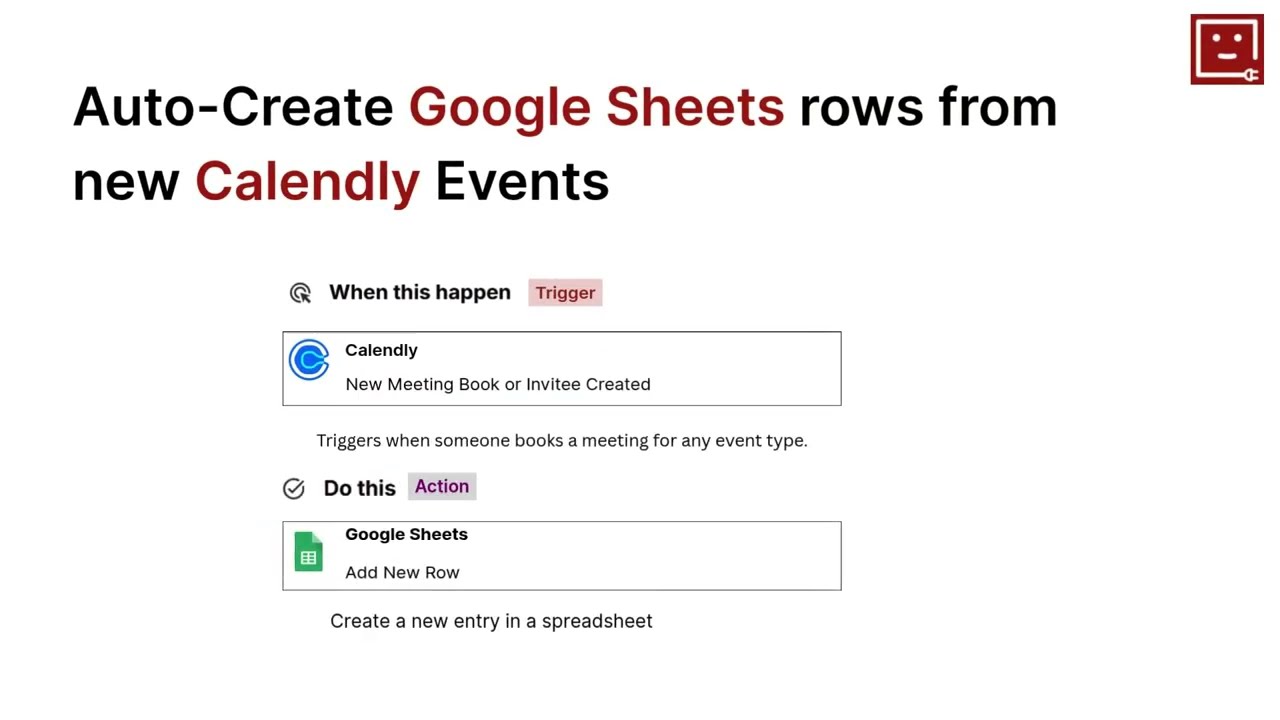
Learn how to automate Google Sheets and Google Ads workflows.
Learn how to automate Google Sheets and Google Ads workflows.
Learn More About Automation
Accounting Automation Guide
Master accounting automation with this guide with examples. Explore top tools, steps, and tips to save time, reduce errors, and streamline finances in 2025.
Simple Ways to Automate Google Sheets
Discover how viaSocket automates Google Sheets—turn form responses into rows, track sales and e-commerce data in real time, sync with project management tools, and set reminders with minimal effort.
Automate Teamwork.com with Slack, Google Sheets & Email -Powered by viaSocket
Connect Teamwork.com with Slack, Google Sheets, and email using viaSocket to trigger real-time notifications, auto-create tasks from external requests, sync live reports, and automate client updates, deadlines, onboarding, and billing.

How viaSocket Works | A Complete Guide
Explore viaSocket, a no-code AI-powered automation platform that connects 2,000+ apps to automate repetitive tasks. Learn how it works, set up triggers and actions, and start automating your day.
viaSocket Support
We're here to help

Instant answers
AI assistant available 24/7
Expert support
Connect with our specialists
Trusted & secure
Your data is safe with us
Start automating Google Sheets and Google Ads free
No credit card required. Set up your first workflow in minutes.
About Google Sheets
Google Sheets is a cloud-based spreadsheet application that lets users create, edit, share, and collaborate on spreadsheets in real time.
Learn moreSimilar apps





About Google Ads
Google Ads is an online advertising platform developed by Google, where advertisers can display brief advertisements, service offerings, product listings, or videos to web users. It can place ads both in the results of search engines like Google Search and on non-search websites, mobile apps, and videos.
Learn more



Frequently Asked Questions
Sign up for a free viaSocket account, then authorize both your Google Sheets and Google Ads accounts. From there, pick a trigger in one app and an action in the other. Your first workflow can be live in under five minutes.
Yes. viaSocket uses instant triggers where available, so data moves between Google Sheets and Google Ads as soon as the event happens. Scheduled polling triggers run at a maximum interval of 15 minutes.
Yes. You can map specific fields, apply filters to skip records that do not match your conditions, and transform values before they reach Google Ads. No coding required.
Yes. You can set up a workflow where Google Sheets triggers actions in Google Ads, and a separate workflow where Google Ads triggers actions in Google Sheets. Both run independently and in real time.
viaSocket logs every run so you can see exactly what succeeded and what failed. Failed tasks can be retried from the dashboard without re-configuring the workflow.
Yes, there is a free plan that covers basic workflows between Google Sheets and Google Ads. Paid plans unlock higher task limits, faster polling, and advanced features like multi-step workflows and conditional logic.
No. The entire Google Sheets and Google Ads integration is built through a visual, point-and-click interface. Code blocks are available if you want them, but they are never required.

