Connect PhantomBuster and Slack
Integrate PhantomBuster with Slack to automate workflows, sync data between apps, and eliminate repetitive tasks with AI-powered automation.
Launch Agent in PhantomBuster when New Message in Channels in Slack channels
List Agents from PhantomBuster when New Message in Channels in Slack channels
Fetch Agent Details from PhantomBuster when New Message in Channels in Slack channels
Fetch Agent Output from PhantomBuster when New Message in Channels in Slack channels
Launch Agent in PhantomBuster when New User Joined or Updated in Your Org in Slack
Popular PhantomBuster + Slack flows
Start from a real workflow other teams are already running.
Choose a trigger
PhantomBuster
When this happens...
New Output
Choose an action
Slack
Automatically do this!
Send Message
Send Interactive Message
Send Block/buttons/Intractive message using AI
Open Modal with Block Kit JSON
Update Message by Timestamp
Send Message as Thread
Create Channel
Set Channel Topic
Message Private Channel
Create Private Channel
Get Thread Replies
Edit Channel Message
List all Private Channels
Find Public channel
Get Messages from Slack
Add Users to Channel
Send Direct Message
Get all Channel Members
Get User Information
Make Slack File Public
Get User Complete Profile Details by ID
Create Canvas
List all Public Channels
Send Block Kit Message
Update Canvas
Lookup Canvas Sections
Add Reaction to a Message
Launch Agent in PhantomBuster when New Message in Channels in Slack channels
Use this flowList Agents from PhantomBuster when New Message in Channels in Slack channels
Use this flowFetch Agent Details from PhantomBuster when New Message in Channels in Slack channels
Use this flowFetch Agent Output from PhantomBuster when New Message in Channels in Slack channels
Use this flowLaunch Agent in PhantomBuster when New User Joined or Updated in Your Org in Slack
Use this flowList Agents from PhantomBuster when New User Joined or Updated in Your Org in Slack
Use this flowFetch Agent Details from PhantomBuster when New User Joined or Updated in Your Org in Slack
Use this flowFetch Agent Output from PhantomBuster when New User Joined or Updated in Your Org in Slack
Use this flowLaunch Agent in PhantomBuster when New Message on Slack in Slack
Use this flowList Agents from PhantomBuster when New Message on Slack in Slack
Use this flowSupported Triggers & Actions
Everything you can automate between PhantomBuster and Slack.
When this happensTriggers
A trigger is an event that starts a workflow.
New Output
Runs when new output is generated by a selected agent.
New Message in Channels
Polls the selected Slack channels on every run and fires once per new message posted since the previous poll, newest first, each with the sender's username added and the channel ID in channel. Includes bot messages; thread replies, edits and join/leave notices are not included. Reads at most 200 messages per channel per run; no new messages gives an empty list. Note: the connected account must be a member of each channel, and a channel it cannot read is skipped without an error.
New User Joined or Updated in Your Org
Polls Slack and fires once per user whose profile was created or changed since the previous poll (new members, profile edits, deactivations), newest first, filtered by User Filter. Returns an array of users with the chosen fields; no matching users gives an empty list. A Slack error is thrown. Note: Slack bumps a user's updated time on any profile change, so existing users fire again when they edit their profile; the window is the poll interval (15 minutes if none is given).
New Message on Slack
Runs when a new message is posted in any channel or direct message of the connected workspace. It polls: thread replies, edits and bot or system messages are not included. Note: each poll joins the public channels it reads.
New Thread Message
Polls a Slack channel and fires once per new thread reply since the previous poll: replies in any thread of the channel, or only in the thread of the selected parent message. Each result is the reply (user, text, ts, thread_ts) plus channel and parent_message_text, the text of the thread's parent. Without a parent message, threads are found in the channel's 200 most recent messages; no new replies gives an empty list. Note: the connected account must be a member of the channel; a Slack error such as not_in_channel or channel_not_found is thrown. For instant delivery use New Thread Message Instant.
New member join/leave or updated in channel
Polls the selected Slack channels and returns one item per event, newest first: a member who joined (subtype channel_join) or left (channel_leave) and, when enabled, a member whose profile changed (profile_updated). Each item holds the Slack user's fields plus the channel id. Public channels the connected account is not in are joined automatically so their history can be read.
Do thisActions
Action is the task that follows automatically within your PhantomBuster integrations.
Launch Agent
Launch an Agent by ID and pass arguments as JSON or key-value pairs; set concurrency, save, and launch options.
List Agents
List agents with optional filters for agent IDs, input/output types, and extra data.
Fetch Agent Details
Retrieve an agent's details and optional data (script and attached slaves) by choosing agent ID and fetch options.
Fetch Agent Output
Fetch an agent's output by agent ID. Configure output position, previous container, status, or event index.
Send Message
Posts a message to one or more channels, sends it as a direct message to one or more users, or replies inside a thread, now or at a scheduled time. Channel names and IDs both work. Returns Slack's response: one object for a single target, an array for several; a scheduled send returns a scheduled_message_id. A failure such as an unknown channel or missing access throws Slack's error code.
Send Interactive Message
Posts a message to a Slack user (direct message) or channel with either action buttons (Send Action Button) or one button that opens a form you describe as Block Kit JSON (Submit a Form), now or scheduled. Send now returns the channel and message ts (buttons: block_actions shape with the buttons list; form: view_submission shape with the form fields); scheduled returns scheduled_message_id and post_at. Fails with Slack's error (for example channel_not_found) if the post is rejected.
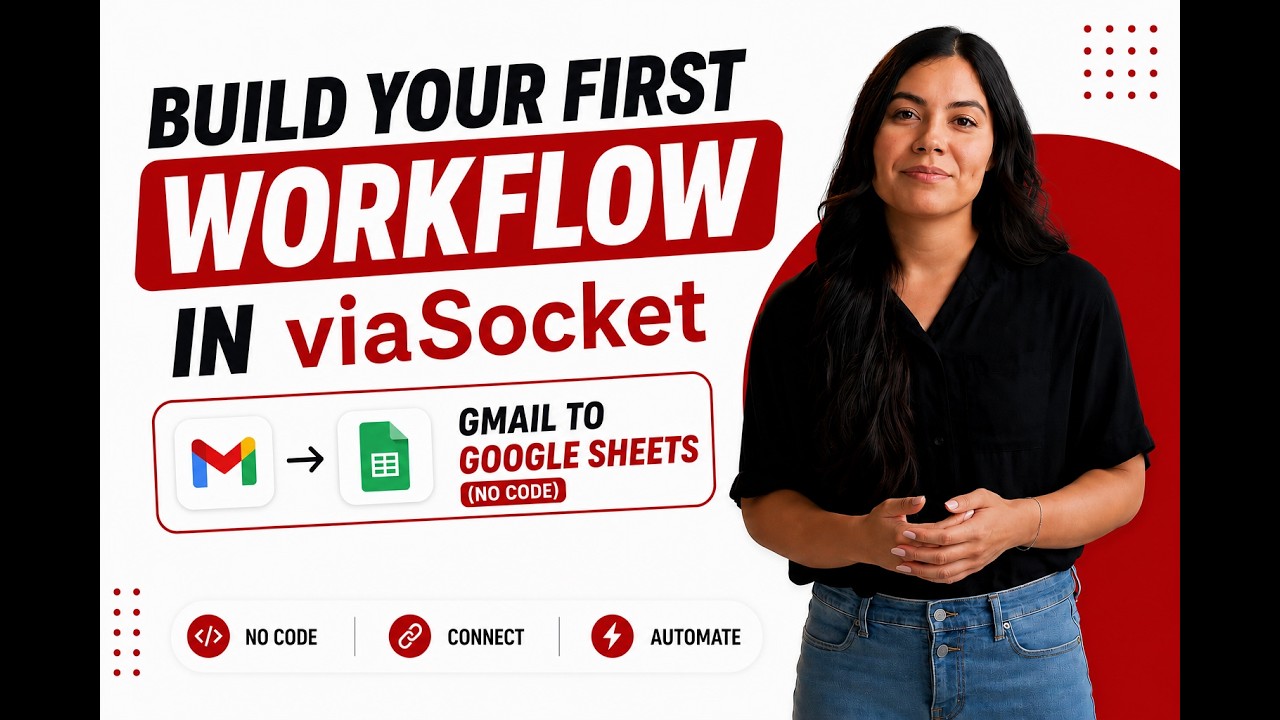
Learn how to build your first workflow
Follow a simple walkthrough to create, test, and launch your first automation.
- 1
Connect your apps
Link the apps you want to automate.
- 2
Configure your workflow
Set up triggers, actions, and map your data.
- 3
Test & publish
Test your workflow and publish it.
Trusted by Thousands. Recognized by the Best.
Recognized by leading review platforms and trusted by 10,000+ businesses worldwide.




From idea to automation.
AI will build it for you
Just describe the task in plain English. viaSocket AI selects the right apps, builds the workflow, maps the fields, and prepares everything for review before you publish.
Learn to build automation
Step-by-step video tutorials to help you connect apps, automate workflows, and save time.
Learn how to automate PhantomBuster and Slack workflows.
Learn how to automate PhantomBuster and Slack workflows.
Learn how to automate PhantomBuster and Slack workflows.
Learn how to automate PhantomBuster and Slack workflows.
Learn how to automate PhantomBuster and Slack workflows.
Learn More About Automation
Integrating Typeform and Slack for Seamless Communication
Learn to integrate Typeform with Slack for efficient communication. Streamline your processes and boost team productivity with our comprehensive guide.
How to Integrate HubSpot Forms with Slack for Instant Alerts
Learn the step-by-step process to connect HubSpot Forms with Slack for immediate alerts. Streamline your communication and never miss important updates.
Automate Teamwork.com with Slack, Google Sheets & Email -Powered by viaSocket
Connect Teamwork.com with Slack, Google Sheets, and email using viaSocket to trigger real-time notifications, auto-create tasks from external requests, sync live reports, and automate client updates, deadlines, onboarding, and billing.

How viaSocket Works | A Complete Guide
Explore viaSocket, a no-code AI-powered automation platform that connects 2,000+ apps to automate repetitive tasks. Learn how it works, set up triggers and actions, and start automating your day.
viaSocket Support
We're here to help

Instant answers
AI assistant available 24/7
Expert support
Connect with our specialists
Trusted & secure
Your data is safe with us
Start automating PhantomBuster and Slack free
No credit card required. Set up your first workflow in minutes.
About PhantomBuster
PhantomBuster is a powerful tool for automating data extraction and web scraping tasks, enabling users to gather insights from various online platforms efficiently.
Learn more



About Slack
Slack is an AI-powered work platform for team communication, collaboration, project coordination, and workflow automation. It helps organizations centralize conversations, share files, manage channels, and integrate tools to keep work moving in one place.
Learn moreFrequently Asked Questions
Sign up for a free viaSocket account, then authorize both your PhantomBuster and Slack accounts. From there, pick a trigger in one app and an action in the other. Your first workflow can be live in under five minutes.
Yes. viaSocket uses instant triggers where available, so data moves between PhantomBuster and Slack as soon as the event happens. Scheduled polling triggers run at a maximum interval of 15 minutes.
Yes. You can map specific fields, apply filters to skip records that do not match your conditions, and transform values before they reach Slack. No coding required.
Yes. You can set up a workflow where PhantomBuster triggers actions in Slack, and a separate workflow where Slack triggers actions in PhantomBuster. Both run independently and in real time.
viaSocket logs every run so you can see exactly what succeeded and what failed. Failed tasks can be retried from the dashboard without re-configuring the workflow.
Yes, there is a free plan that covers basic workflows between PhantomBuster and Slack. Paid plans unlock higher task limits, faster polling, and advanced features like multi-step workflows and conditional logic.
No. The entire PhantomBuster and Slack integration is built through a visual, point-and-click interface. Code blocks are available if you want them, but they are never required.