

Connect ScreenshotEngine and Cardly to Build Intelligent Automations
Choose a Trigger

When this happens...
- Request a new Trigger for ScreenshotEngine
Choose an Action

Automatically do this!
Invite User to Account
Create a Contact List
Create a Contact
Delete a Contact
Revoke User Access
Send a Card
Synchronize a Contact
Ready to use ScreenshotEngine and Cardly automations



Actions and Triggers
When this happensTriggers
A trigger is an event that starts a workflow.
Automation Order Cancelled
Get details about an order that was cancelled for one of your contacts and the rule that originally triggered it.
Automation Order Created
Get details about an order that was just created for one of your contacts based on an automation rule being triggered.
Automation Order Sent
Get details about an order that was dispatched for one of your contacts and the rule that originally triggered it.
Contact Change of Address Notification
Feed back details of a change of address notification for one of your contacts back into an external system.
Contact Undeliverable as Addressed Notification
Feed back details of an undeliverable mail notification for one of your contacts back into an external system.
Gift Card Redeemed
Get notified that a gift in one of your cards was redeemed, along with the details of who the card was sent to.
Do thisActions
Action is the task that follows automatically within your ScreenshotEngine integrations.
Capture Website Screenshot
Take a screenshot of a web page and return a public image URL.
Create Screenshot with Watermark
Captures a screenshot of a web page and applies a custom watermark using ScreenshotEngine.
Invite User to Account
Invite a user to access your account in a non-privileged capacity, optionally allowing free credit or saved credit card usage.
Create a Contact List
Create a new contact list to group contacts together, such as *Recent Orders* or *Current Customers*.
Create a Contact
Create a new contact in a given contact list.
Delete a Contact
Delete a contact from a list so they are no longer eligible for matching automation rules.
Know More About Screenshotengine and Cardly Integrations
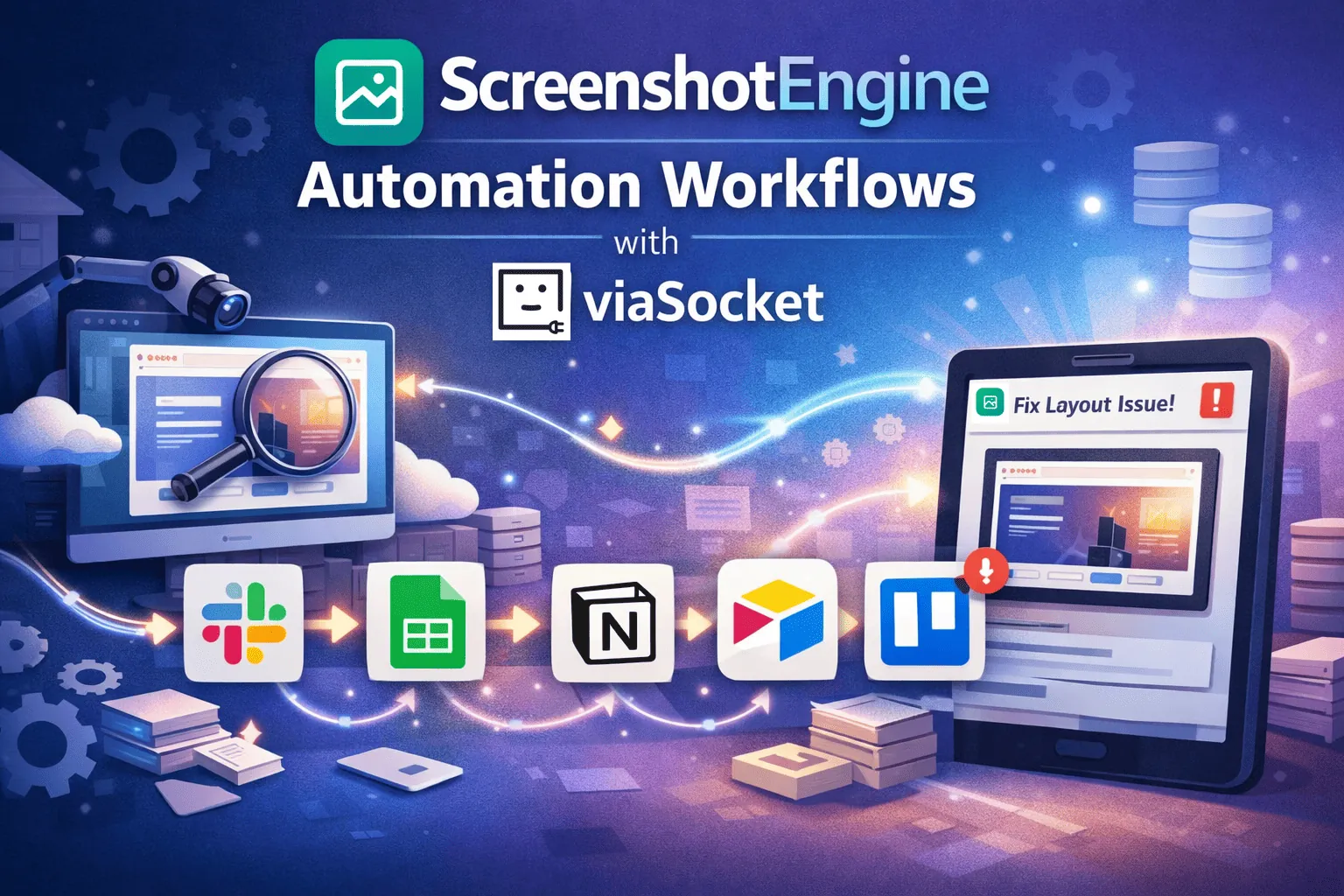
ScreenshotEngine Automation Workflows with viaSocket
Scale screenshot capture and post-processing with ScreenshotEngine and viaSocket. Automate QA checks, audits, and visual monitoring - log images in Google Sheets, attach to Notion, archive in Airtable, and create Trello cards.

How viaSocket Works | A Complete Guide
Discover viaSocket, an AI-powered workflow automation platform with 2,000+ integrations. Learn what it is, how it works, and how to set up no-code automated workflows.

5 Simple Automation Hacks to Make Your Team Free
Unlock your team's potential with 5 straightforward automation hacks designed to streamline processes and free up valuable time for more important work.
What is Workflow Automation - Definition, Importance & Benefits | A Complete Guide
Explore workflow automation: its definition, benefits, how it works, real-world examples, and how to automate with viaSocket.
Frequently Asked Questions
To start, connect both your ScreenshotEngine and Cardly accounts to viaSocket. Once connected, you can set up a workflow where an event in ScreenshotEngine triggers actions in Cardly (or vice versa).
Absolutely. You can customize how ScreenshotEngine data is recorded in Cardly. This includes choosing which data fields go into which fields of Cardly, setting up custom formats, and filtering out unwanted information.
The data sync between ScreenshotEngine and Cardly typically happens in real-time through instant triggers. And a maximum of 15 minutes in case of a scheduled trigger.
Yes, viaSocket allows you to add custom logic or use built-in filters to modify data according to your needs.
Yes, you can set conditional logic to control the flow of data between ScreenshotEngine and Cardly. For instance, you can specify that data should only be sent if certain conditions are met, or you can create if/else statements to manage different outcomes.
About ScreenshotEngine
ScreenshotEngine is a powerful tool designed to capture and manage screenshots efficiently. Perfect for developers, designers, and content creators, it offers seamless integration and high-quality image processing.
Learn MoreAbout Cardly
Cardly helps businesses create great engagement with customers by getting out of inboxes and into mailboxes.
Learn More
