

Connect ScreenshotEngine and Dropbox to Build Intelligent Automations
Choose a Trigger

When this happens...
- Request a new Trigger for ScreenshotEngine
Choose an Action

Automatically do this!
Delete File or Folder
Create Shared Link
Create Folder
List Folder Contents
Advance search
Upload File to Dropbox
Get Dropbox File Download Link
Copy File or Folder
Create Text File
Move Or Rename File
Upload Or Append File Content
List all files
Create File Request
Set Shared Link Download Permission
Invite Members To Shared Folder
Ready to use ScreenshotEngine and Dropbox automations



Actions and Triggers
When this happensTriggers
A trigger is an event that starts a workflow.
New File in Folder
Triggers when a new file is added to a folder. Make sure the number of files/folders in the watched folder does not exceed 6000.
New or Updated File
Triggers when a new file is added or updated in a folder. Make sure the number of files/folders in the watched folder does not exceed 6000.
Do thisActions
Action is the task that follows automatically within your ScreenshotEngine integrations.
Capture Website Screenshot
Take a screenshot of a web page and return a public image URL.
Create Screenshot with Watermark
Captures a screenshot of a web page and applies a custom watermark using ScreenshotEngine.
Delete File or Folder
Deletes a file or folder from Dropbox by its location; removing a folder deletes everything inside it.
Create Shared Link
Creates a shareable link for a file so you can send it to others.
Create Folder
Creates a new folder in Dropbox at the location you choose.
List Folder Contents
Lists the files and subfolders in a specified Dropbox folder.

Know More About Screenshotengine and Dropbox Integrations
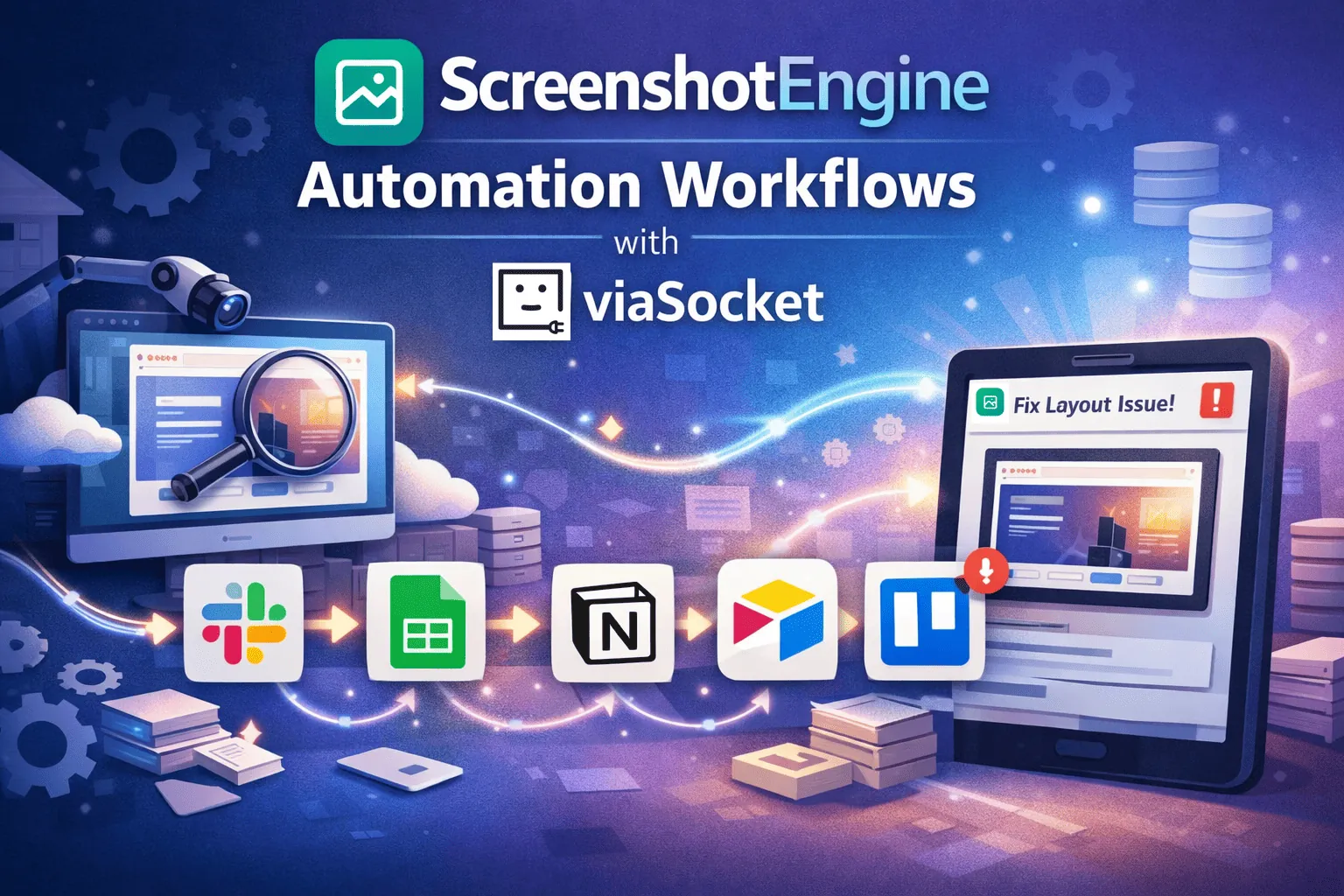
ScreenshotEngine Automation Workflows with viaSocket
Scale screenshot capture and post-processing with ScreenshotEngine and viaSocket. Automate QA checks, audits, and visual monitoring - log images in Google Sheets, attach to Notion, archive in Airtable, and create Trello cards.
How viaSocket Works | A Complete Guide
Discover viaSocket, an AI-powered workflow automation platform with 2,000+ integrations. Learn what it is, how it works, and how to set up no-code automated workflows.

5 Simple Automation Hacks to Make Your Team Free
Unlock your team's potential with 5 straightforward automation hacks designed to streamline processes and free up valuable time for more important work.
What is Workflow Automation - Definition, Importance & Benefits | A Complete Guide
Explore workflow automation: its definition, benefits, how it works, real-world examples, and how to automate with viaSocket.
Step by step guides to integrate ScreenshotEngine and Dropbox
Frequently Asked Questions
To start, connect both your ScreenshotEngine and Dropbox accounts to viaSocket. Once connected, you can set up a workflow where an event in ScreenshotEngine triggers actions in Dropbox (or vice versa).
Absolutely. You can customize how ScreenshotEngine data is recorded in Dropbox. This includes choosing which data fields go into which fields of Dropbox, setting up custom formats, and filtering out unwanted information.
The data sync between ScreenshotEngine and Dropbox typically happens in real-time through instant triggers. And a maximum of 15 minutes in case of a scheduled trigger.
Yes, viaSocket allows you to add custom logic or use built-in filters to modify data according to your needs.
Yes, you can set conditional logic to control the flow of data between ScreenshotEngine and Dropbox. For instance, you can specify that data should only be sent if certain conditions are met, or you can create if/else statements to manage different outcomes.
About ScreenshotEngine
ScreenshotEngine is a powerful tool designed to capture and manage screenshots efficiently. Perfect for developers, designers, and content creators, it offers seamless integration and high-quality image processing.
Learn MoreAbout Dropbox
Dropbox is a file hosting service that offers cloud storage, file synchronization, personal cloud, and client software. It enables users to create a special folder on their computers, which Dropbox then synchronizes so that it appears to be the same folder regardless of the device used to view it. Files placed in this folder are also accessible through the Dropbox website and mobile apps.
Learn More
