



Connect viaSocket Table and Greenhouse
Integrate viaSocket Table with Greenhouse to automate workflows, sync data between apps, and eliminate repetitive tasks with AI-powered automation.
Create Candidate in Greenhouse when When a row in the table is updated in viaSocket Table
Update Candidate in Greenhouse when When a row in the table is updated in viaSocket Table
Find Candidates in Greenhouse when When a row in the table is updated in viaSocket Table
Add Tag to Candidate in Greenhouse when When a row in the table is updated in viaSocket Table
Add Note to Candidate in Greenhouse when When a row in the table is updated in viaSocket Table
Popular viaSocket Table + Greenhouse flows
Start from a real workflow other teams are already running.
Choose a trigger
viaSocket Table
When this happens...
When a row in the table is updated
New Row Created
Record Is Updated
Record Is Deleted
Choose an action
Greenhouse
Automatically do this!
Create Candidate
Update Candidate
Find Candidates
Add Tag to Candidate
Add Note to Candidate
Upload Attachment
Add Candidate Education
Add Candidate Employment
Merge Candidates
Anonymize Candidate
Delete Candidate
Create Application
Update Application
Move Application Stage
Reject Application
Unreject Application
Mark Application as Hired
Find Applications
Convert Prospect to Candidate
Delete Application
Find Jobs
Create Job
Update Job
Create Opening
Update Opening
Add Job Note
Find Job Posts
Update Job Post
Create Offer
Update Offer
Find Offers
Schedule Interview
Update Interview
Delete Interview
Find Interviews
Find Scorecards
Find Users
Create User
Activate User
Deactivate User
Find Departments
Find Offices
Create Candidate in Greenhouse when When a row in the table is updated in viaSocket Table
Use this flowUpdate Candidate in Greenhouse when When a row in the table is updated in viaSocket Table
Use this flowFind Candidates in Greenhouse when When a row in the table is updated in viaSocket Table
Use this flowAdd Tag to Candidate in Greenhouse when When a row in the table is updated in viaSocket Table
Use this flowAdd Note to Candidate in Greenhouse when When a row in the table is updated in viaSocket Table
Use this flowUpload Attachment in Greenhouse when When a row in the table is updated in viaSocket Table
Use this flowAdd Candidate Education in Greenhouse when When a row in the table is updated in viaSocket Table
Use this flowAdd Candidate Employment in Greenhouse when When a row in the table is updated in viaSocket Table
Use this flowMerge Candidates in Greenhouse when When a row in the table is updated in viaSocket Table
Use this flowAnonymize Candidate in Greenhouse when When a row in the table is updated in viaSocket Table
Use this flowSupported Triggers & Actions
Everything you can automate between viaSocket Table and Greenhouse.
When this happensTriggers
A trigger is an event that starts a workflow.
When a row in the table is updated
Runs the workflow automatically whenever a row in the table is updated.
New Row Created
Runs when a new row is added to the selected viaSocket Table table and returns the new row: its columns plus tableId and event "create". Note: The row is re-read from the table about 40 seconds after the event, so the output holds the column values as they are at that moment, not at creation.
Record Is Updated
Runs when a row in the selected viaSocket Table table is updated. Passes the updated row (rowid and column values), the table id and the event to the next step.
Record Is Deleted
Runs when a row in the selected viaSocket Table table is deleted. Passes the table id, database id, event "delete" and the row (rowid and columns) to the next step. Note: The Test button shows the table's latest existing row, not a deleted one.
New Application
Runs when a candidate applies or is added to a job, optionally for chosen jobs.
Updated Application
Runs when an application is updated, including stage changes, optionally for chosen jobs.
Do thisActions
Action is the task that follows automatically within your viaSocket Table integrations.
Add Records To Table
Adds one row, or many rows from a JSON array, to a viaSocket Table table; returns the row, or a count in bulk mode.
Update Table Rows
Update one row, or many rows at once, in a viaSocket Table by rowid; columns you leave out stay unchanged. Note: A rowid that is not found returns a message (single mode) or an entry in the failed list (bulk mode) instead of an error.
Get Table Rows
Gets rows from a viaSocket Table: all rows, or only those matching a filter formula, a SQL-style query or exact column values. Returns an array of row objects, or {message} when nothing matches. Note: Up to 5000 rows come back per run; beyond that the result is {rows, has_more, next_offset}, so pass next_offset as Offset to continue. Key/Value mode needs every value to match (AND).
List Table Columns
Lists the columns of a viaSocket Table table as one object keyed by column id, each with fieldName, fieldType and metaData; system columns such as rowid are included. Returns {message} if there are none.
Attach Files to Record
Attaches a file to a record's attachment column from a public URL or Base64 data; existing files stay. Note: The record is found by its Record Auto Number. Give one file per column per run. Returns an object keyed by column id with the stored file URL; if a column fails the run errors and columns already uploaded stay attached.
Create Candidate
Create a candidate profile, optionally applying them to a job at the same time.
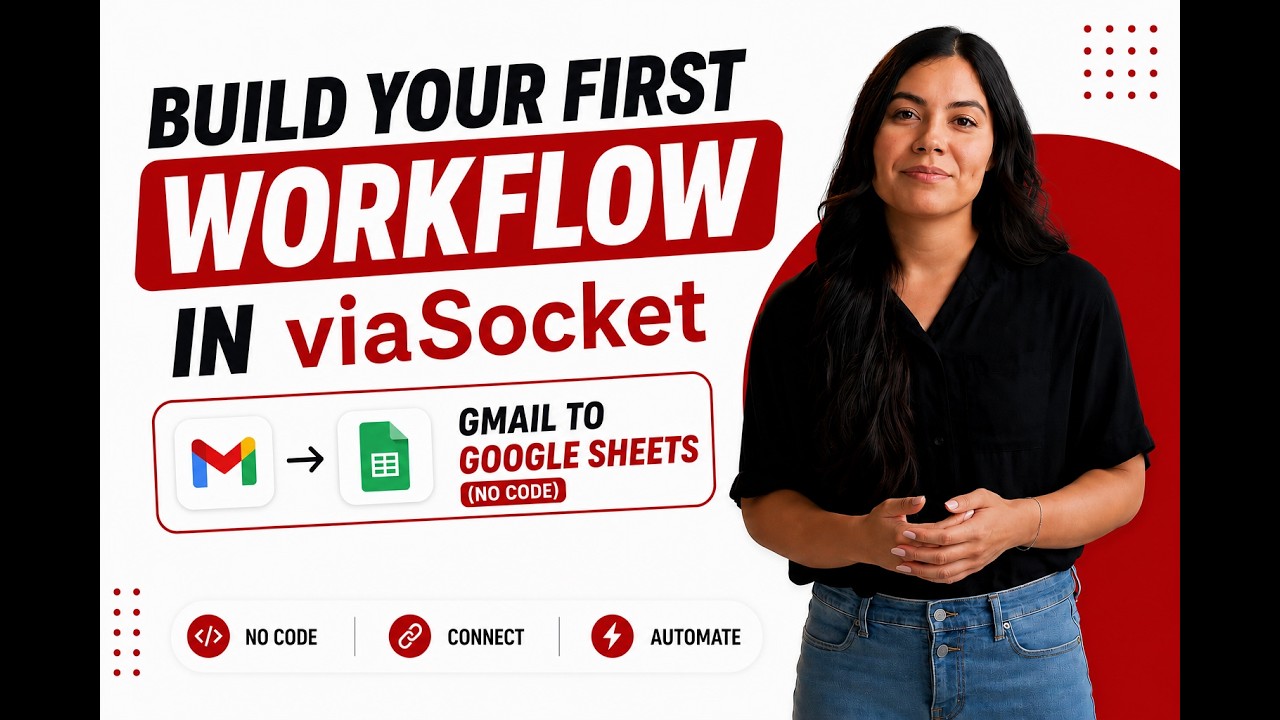
Learn how to build your first workflow
Follow a simple walkthrough to create, test, and launch your first automation.
- 1
Connect your apps
Link the apps you want to automate.
- 2
Configure your workflow
Set up triggers, actions, and map your data.
- 3
Test & publish
Test your workflow and publish it.
Trusted by Thousands. Recognized by the Best.
Recognized by leading review platforms and trusted by 10,000+ businesses worldwide.


From idea to automation.
AI will build it for you
Just describe the task in plain English. viaSocket AI selects the right apps, builds the workflow, maps the fields, and prepares everything for review before you publish.
Learn More About Automation

How viaSocket Works | A Complete Guide
Explore viaSocket, a no-code AI-powered automation platform that connects 2,000+ apps to automate repetitive tasks. Learn how it works, set up triggers and actions, and start automating your day.

5 Simple Automation Hacks to Make Your Team Free
Five practical automation hacks to cut repetitive tasks and boost productivity using viaSocket, covering lead generation, onboarding, accounting, support, and HR.
What is Workflow Automation - Definition, Importance & Benefits | A Complete Guide
Explore workflow automation: its definition, benefits, how it works, real-world examples, and how to automate with viaSocket.
What are Webhooks - Definition, Working, Usage & Examples | A Complete Guide
Discover what webhooks are, how they work, and when to use them. Compare push-based webhooks with APIs and polling, with practical examples and ViaSocket integration.
viaSocket Support
We're here to help

Instant answers
AI assistant available 24/7
Expert support
Connect with our specialists
Trusted & secure
Your data is safe with us
Start automating viaSocket Table and Greenhouse free
No credit card required. Set up your first workflow in minutes.
About viaSocket Table
viaSocket Table is an integrated data workspace for storing, organizing, and managing records that power automations and AI-driven workflows. It helps teams keep workflow data updated, accessible, and ready to use across connected apps and automation flows.
Learn more



About Greenhouse
Greenhouse is a hiring software company. We create the technology, know-how and support for your business' hiring needs.
Learn moreSimilar apps


Frequently Asked Questions
Sign up for a free viaSocket account, then authorize both your viaSocket Table and Greenhouse accounts. From there, pick a trigger in one app and an action in the other. Your first workflow can be live in under five minutes.
Yes. viaSocket uses instant triggers where available, so data moves between viaSocket Table and Greenhouse as soon as the event happens. Scheduled polling triggers run at a maximum interval of 15 minutes.
Yes. You can map specific fields, apply filters to skip records that do not match your conditions, and transform values before they reach Greenhouse. No coding required.
Yes. You can set up a workflow where viaSocket Table triggers actions in Greenhouse, and a separate workflow where Greenhouse triggers actions in viaSocket Table. Both run independently and in real time.
viaSocket logs every run so you can see exactly what succeeded and what failed. Failed tasks can be retried from the dashboard without re-configuring the workflow.
Yes, there is a free plan that covers basic workflows between viaSocket Table and Greenhouse. Paid plans unlock higher task limits, faster polling, and advanced features like multi-step workflows and conditional logic.
No. The entire viaSocket Table and Greenhouse integration is built through a visual, point-and-click interface. Code blocks are available if you want them, but they are never required.

