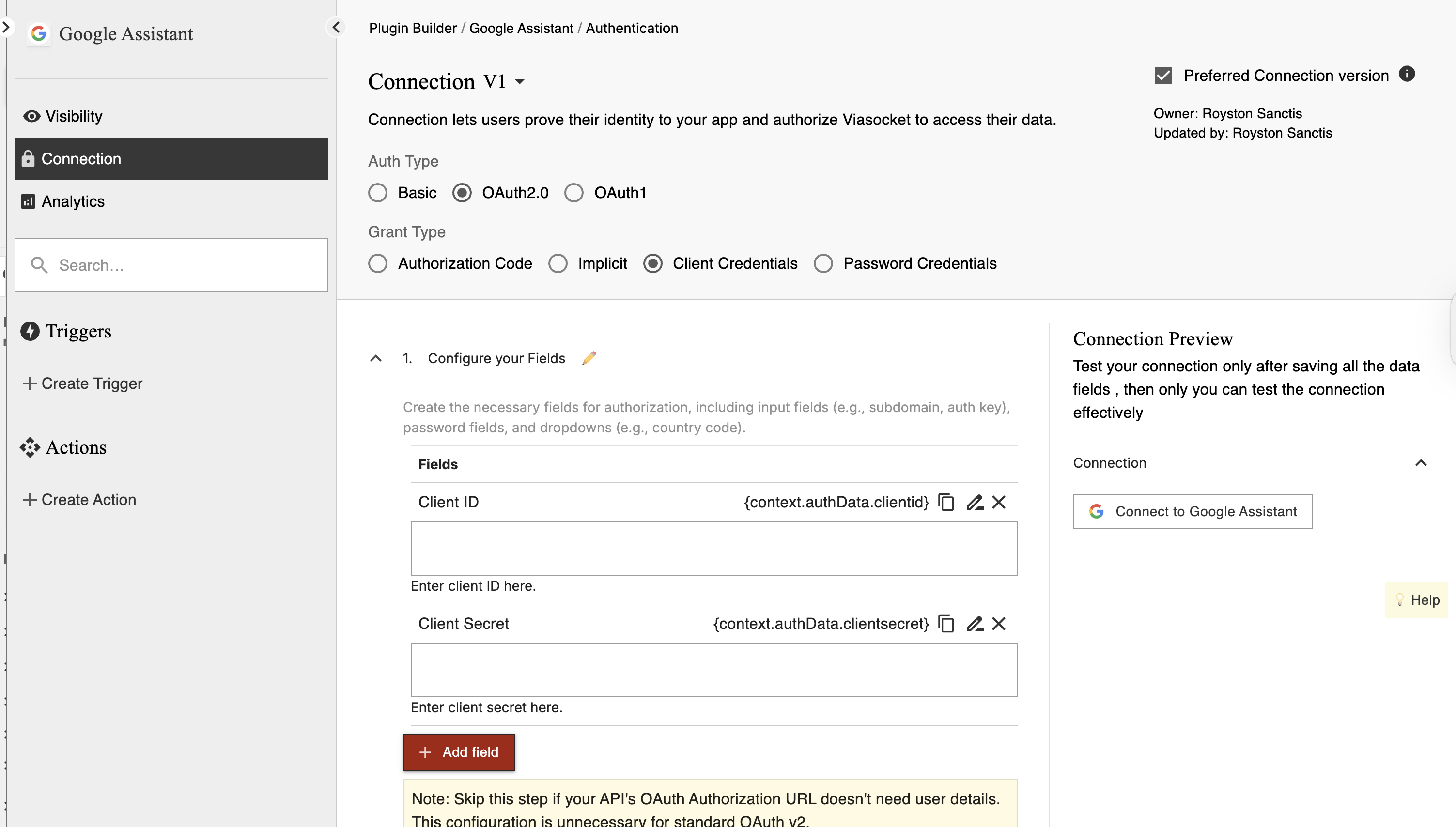
Authentication Auth2.0 - Client Credentials
⚙️ Setup Steps
Purpose:
This flow is for app-to-app communication with no user interaction. The application authenticates itself using its Client ID and Client Secret to get an access token. Common in backend integrations, automation scripts, and service accounts.

Step 1 — Configure Fields
Add the fields users need to connect their account.
👉 Required fields:
Client ID — Public identifier of your app
Client Secret — Private key (keep this secure)er portal.
Optional: API environment (sandbox/production), API version, or custom configuration fields.
💡 Clearly label fields so users know where to find them in the provider’s developer portal.
Step 2 — Add Token URL
The endpoint where viaSocket sends the Client ID and Client Secret to obtain an access token.
Example:
https://service.com/oauth/token👉 viaSocket sends the code
👉 App returns an access token👉 This token is used to access user data
Tip: Use HTTPS to ensure credentials are secure in transit.
Step 3 — Add Refresh Token URL
Usually not required because Client Credentials flow can request a new token any time.
Used when the access token expires
👉 Keeps the connection active
👉 User doesn’t need to log in again
Step 4 — Add Revoke Token URL
Used to disconnect users
👉 Stops further API access
Recommended for security if users may disconnect integrations.
Step 5 — Add Test API
Add a test endpoint to verify the connection.
👉 Example:/me or /profile
This is used to check if credentials are valid
💡 Choose a simple endpoint that always returns data
Step 6 — Add Connection Name
Define how the connection will appear to users.
👉 Example: John’s Account
👉 Use dynamic values like name or email if available
Step 7 — Add Allowed URLs
Add the API base URLs your integration will use.
Only include required domains
Avoid unnecessary URLs
✔ Helps keep your connection secure
💡 Prevents unwanted or unsafe calls
Step 8 — Add Unique Identifier
Used to identify each user connection
👉 Example:
email
account_id
👉 Helps avoid duplicate connections
Step 9 — Set Request Parameters (optional)
Use this to automatically include values in every API request.
What does this do?
It allows you to define default key-value pairs that are added to every request.
You can configure:
Headers
Query Parameters
Body
👉 These values are automatically applied to all requests made through this connection.
Common examples
Header authentication
Authorization: Bearer {{access_token}}API key
api_key: {{api_key}}Static parameter
version: v2When to use this
Same headers are required in every request
You want to avoid repeating authentication logic
Your API needs fixed parameters
When NOT to use this
Values change per request
Different endpoints need different values
⚠️ Don’t add sensitive data here
Extra Best Practices
Keep Client Secret safe — never expose it in public repos or frontend code.
Request only the minimum scopes needed.
Automate token renewal before expiry if tokens are short-lived.
Perfect for background jobs, system integrations, and scheduled automation.
If