Built with DocStar
The Break feature in viaSocket allows you to stop a workflow intentionally based on specific logic. It is used to prevent unnecessary actions and stop further execution.
viaSocket provides two types of Break controls:
Break in IF Condition (Trigger-Level Workflow Break) - IF + Break
The Flow Break inside a IF Step is used to stop the entire workflow from continuing if a condition is not met.
When applied at the trigger level, the workflow will only run if the incoming data meets the filter condition — otherwise, it stops immediately.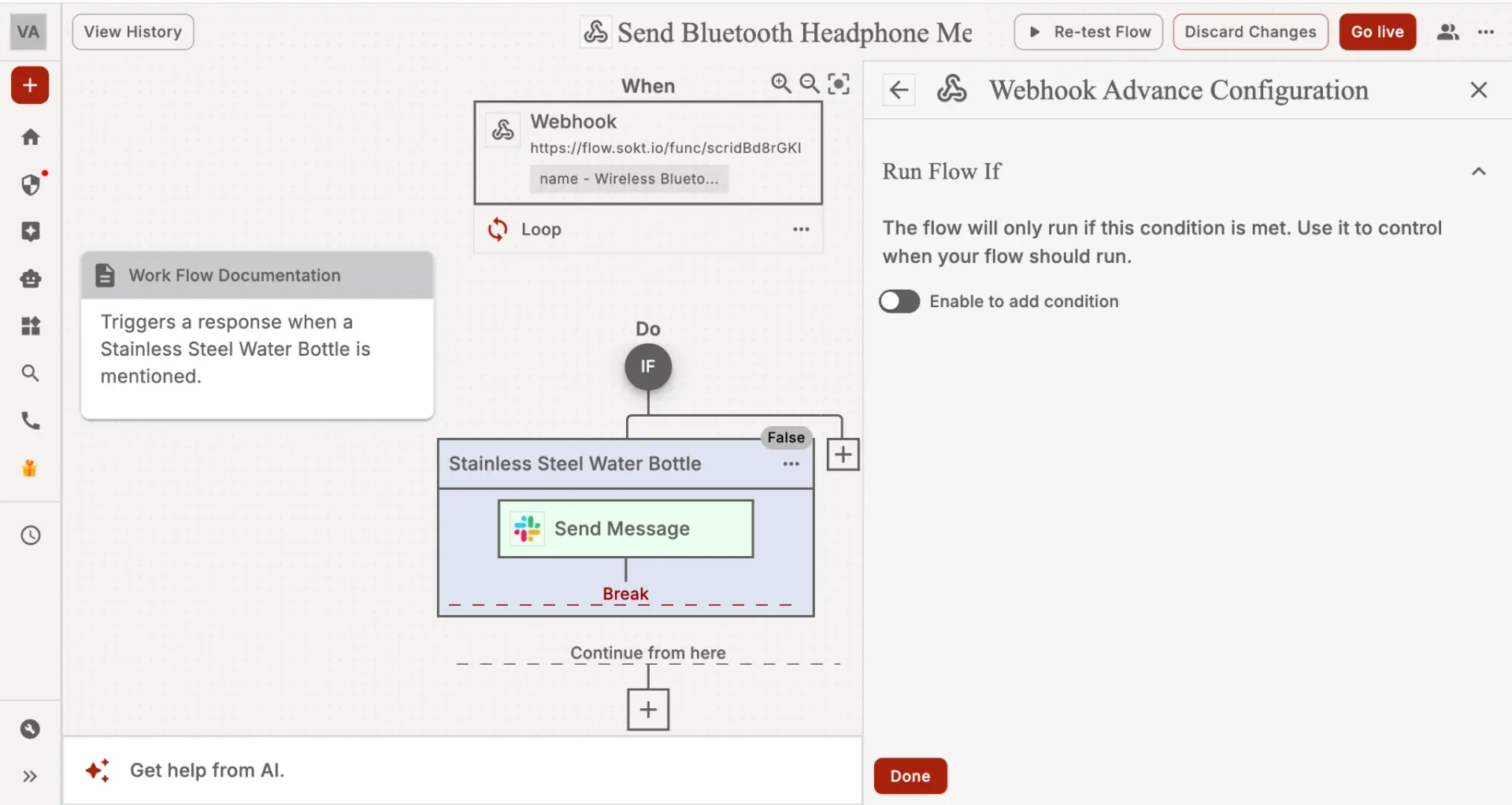
Key Points• Works as an IF condition for the entire workflow.
• Can be applied in the Trigger or in a Filter Step.
• If the condition fails → the workflow stops instantly.
• No further steps are executed.
• Ideal for validating incoming data before wasting workflow operations.
Example Use Cases
At the trigger level:
• Only run the workflow if the event type is “Signup”.
• Only run when “status = paid”.
2. Break inside Multiple Path
Break can only be added inside Multiple Path blocks. It cannot be used in the main flow.
How Break Works
When Break executes:
• The current branch stops immediately
• Any remaining actions in that branch are ignored
• A default or custom response is returned (for webhook triggers)
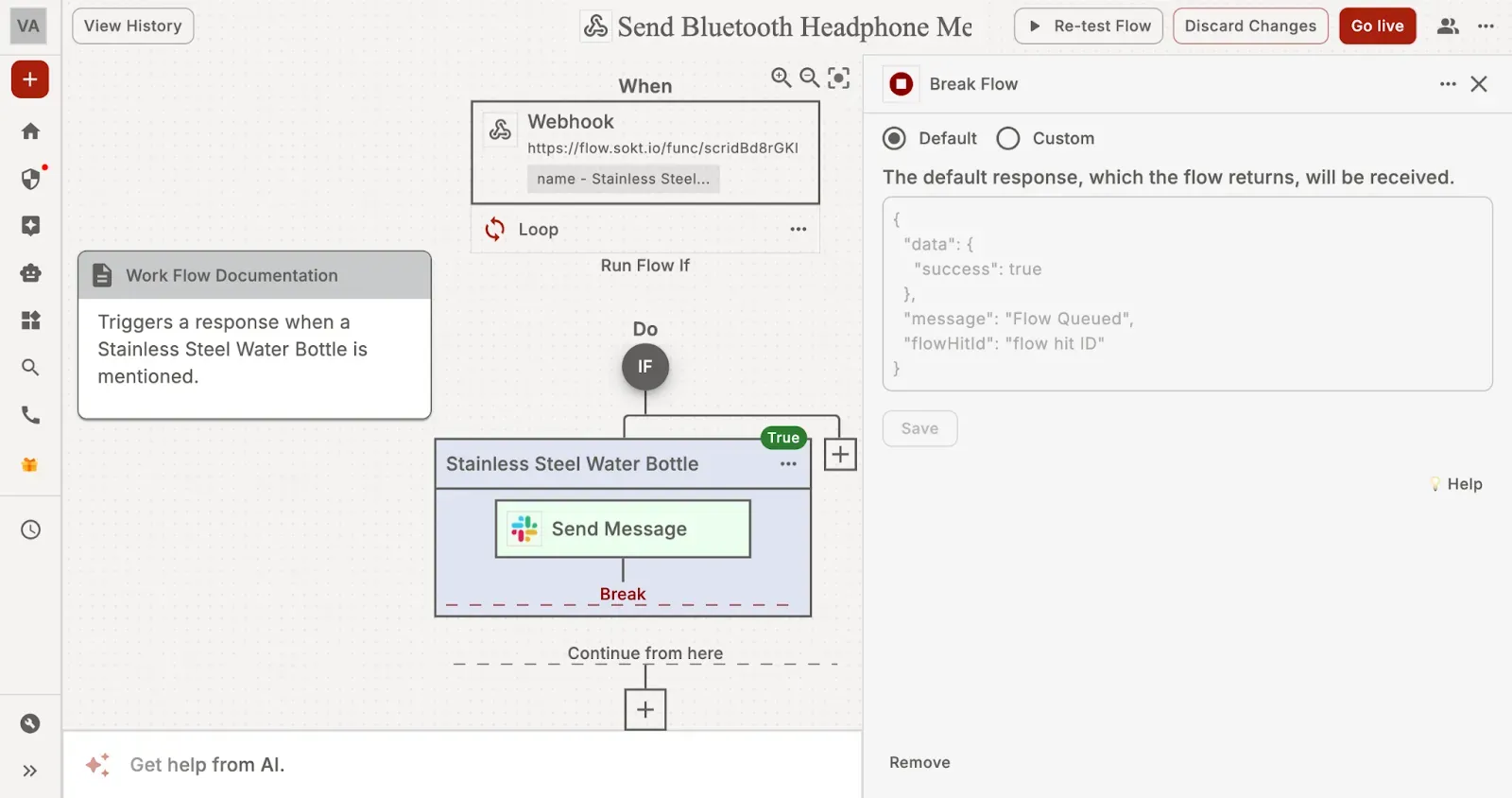
• The workflow continues executing the next steps after the Multiple Path block (not the entire flow)
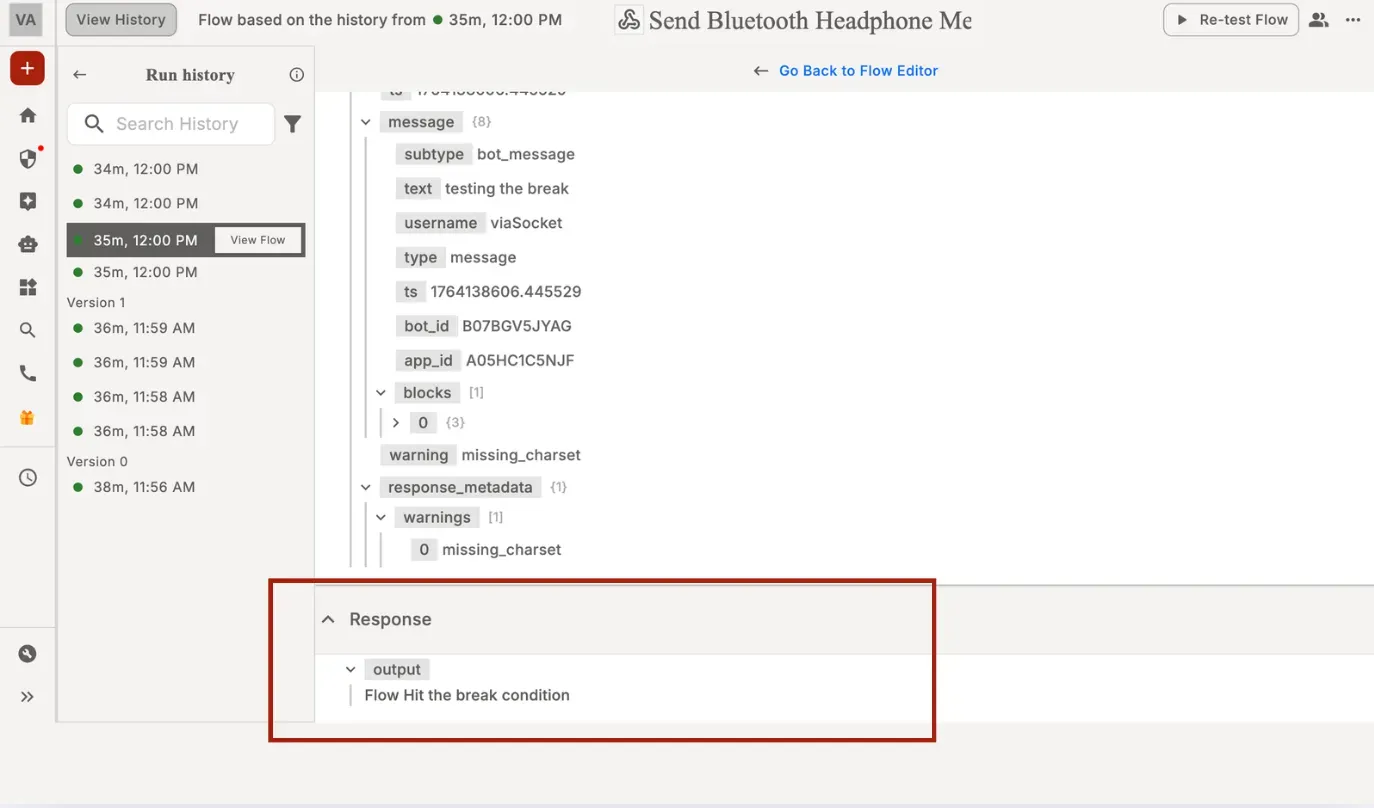
• Break does not stop the whole flow—only the branch it is inside.
Break does not stop the whole flow—only the branch it is inside.
Example Use Case
WFH Logs Submitted
The workflow starts when an agent submits a WFH request.IF Condition: Check if User Exists in Slack
• The system searches for the user in Slack using the email ID.
• User Not Found in Slack → Break + Custom Response
"Please check your registered email ID"
• The workflow stops here because the user cannot be verified.
• User Found in Slack → ContinueIF Condition: Check if the Agent Has a Mentor Assigned
• The system looks up the mentor mapping.
• Mentor Not Assigned → Break + Custom Response
"Mentor not assigned. Please assign a mentor to continue."
• The workflow ends because mentor approval cannot proceed.
• Mentor Assigned → ContinueHuman Intervention Step: Mentor Approves or Rejects WFH
• A manual approval step is triggered for the mentor:
- Mentor Approves → WFH Approved
- Mentor Rejects → WFH Rejected